Connecting Claude or ChatGPT
You and your operators can look after the employee list from Claude or ChatGPT. Each person connects their own assistant by signing in to Spherum as themselves; nobody copies a key. The assistant then works with that person’s role and spheres, and it never sees what is on anyone’s card. As an administrator, you also see every connection in the company and can end any of them.
What a connected assistant can do
Section titled “What a connected assistant can do”Six things, the same ones anybody does on Dashboard:
| You ask | What happens |
|---|---|
| “Who hasn’t accepted their invitation yet?” | It lists the records the person can see, with their status and a link to each in the Portal. |
| “Invite Mary Major, mary.major@example.com, Internal.” | One record is created and the invitation goes out. |
| “Add these twelve people, but don’t email them yet.” | Up to 20 records at a time. Nobody is emailed unless asked. |
| “Send Mary her invitation again.” | Re-sends to someone who hasn’t granted access yet. |
| “Richard Roe has left. Archive him.” | Archives the record, frees the seat and ends your company’s access to his card. |
| “Richard is back. Restore him.” | Takes the record out of the archive. Access does not come back by itself: he grants it again. |
It asks before it acts. Inviting, re-sending and archiving reach real people, so the assistant confirms first.
What it cannot do, by design: read a card, revoke anyone’s access, work with tokens, export or print, manage your team, spheres or billing, or change settings. Those stay in the Portal.
A connection or an API key?
Section titled “A connection or an API key?”Both reach the same six actions. They differ in who is acting.
| Connecting by signing in | An API key | |
|---|---|---|
| Who it acts as | One person, with their role and spheres | The whole company, every sphere |
| Who sets it up | Each person, for themselves | An administrator |
| Where it works | Claude, ChatGPT | HR systems, scripts, local tools such as Claude Code or Cursor |
| How long it lasts | Up to 90 days, then sign in again | Until you revoke it |
| How it ends | Disconnected in Settings → Connected apps | Revoked in Settings → API keys |
For people working from a chat, use connections. Keys are for systems — see Connect an AI assistant for the technical setup.
Before anyone connects
Section titled “Before anyone connects”Who can connect. Administrators and operators, each for themselves. Spherum staff accounts cannot connect apps to your workspace.
Their Claude or ChatGPT account. Any account works. It does not have to use the same email address as Spherum, and the two are never linked beyond the connection.
Company plans of Claude or ChatGPT. If your team uses a company workspace of Claude or ChatGPT, its admin may have to add the Spherum connector once before members can connect — send them Adding Spherum to your company’s Claude or ChatGPT. After that, each person signs in to Spherum individually.
The server address, in Settings → Connected apps, with a Copy button. It is the same for everyone:
https://api.spherum.ae/api/public/v1/mcpTo get your operators started, send them the address and the operator’s guide to connecting.
How connecting works
Section titled “How connecting works”The flow takes about a minute and happens once per person and assistant.
- The person adds Spherum in their assistant, using the server address.
- The assistant sends them to Spherum. A browser tab opens on the Spherum sign-in page.
- They sign in with their Portal account, second factor included.
- Spherum asks them to confirm which app is connecting, to which company, and as whom. They press Allow.
- They are back in the assistant, and Spherum appears among its connectors.
Connecting Claude
Section titled “Connecting Claude”The same steps work in Claude in the browser (claude.ai) and in the Claude desktop app.
If your company has already added Spherum for everyone, open Customize → Connectors, press Connect next to Spherum, and go straight to step 5.
-
Open Customize → Connectors and choose Add custom connector.
-
Give it a name, for example
Spherum, and paste the server address. -
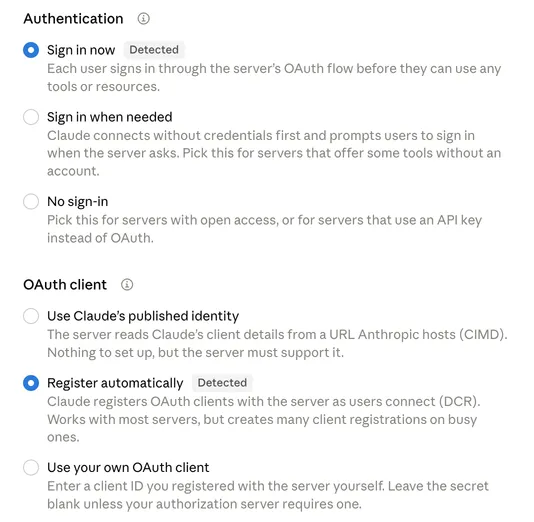
Leave the sign-in options as Claude detects them: Sign in now under Authentication, and Register automatically under OAuth client.
-
Press Add, then Connect next to Spherum.
-
If a Claude sign-in page opens first, sign in with the same Claude account you are using in the app. This is Claude checking it is you, not Spherum yet.
-
The Spherum sign-in page opens. Sign in, check the confirmation page, and press Allow.
In a new chat, make sure Spherum is switched on in the connectors menu of the message box, then ask your first question.
Connecting ChatGPT
Section titled “Connecting ChatGPT”Where Spherum works in ChatGPT depends on your ChatGPT plan.
On any plan with Codex — in the ChatGPT desktop app. Spherum is added as a server for Codex, and you work with it in Codex rather than in an ordinary chat.
-
Open Settings → Plugins, choose Add, and pick the custom MCP option.
-
Give it a name, for example
spherum, choose Streamable HTTP, and paste the server address. Leave the bearer token and header fields empty: you sign in instead. Press Save.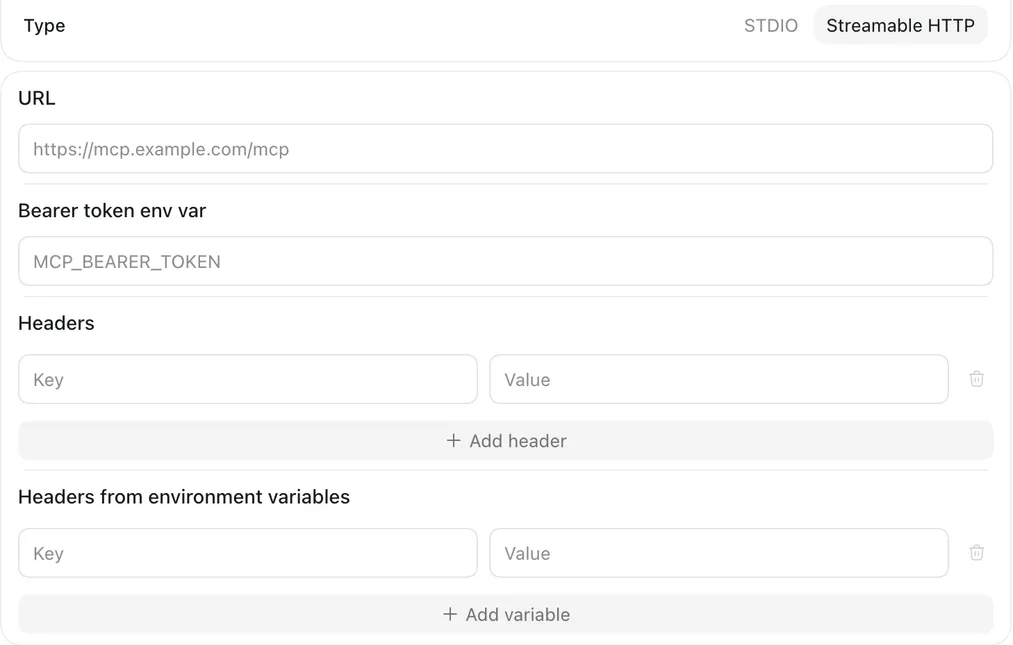
-
On the MCPs tab, press Authenticate next to it. The Spherum sign-in page opens in your browser.

-
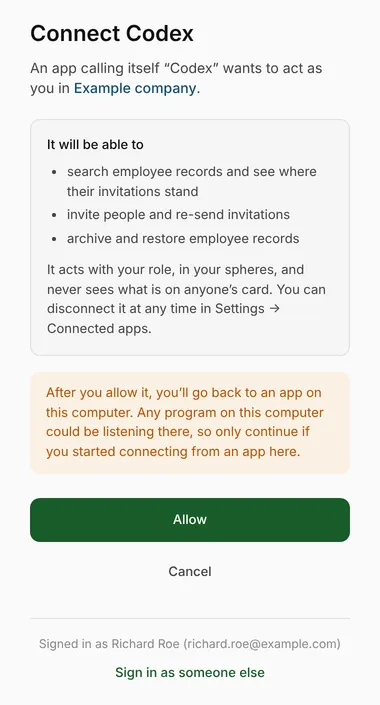
Sign in. The confirmation page names the app Codex and warns that you will go back to an app on this computer. That is expected when you started from the ChatGPT app: press Allow.
-
A page saying
Authentication completeopens. Close it, and the Authenticate button is gone.
Ask your questions in Codex. An ordinary ChatGPT chat does not see servers added this way, and will say Spherum isn’t available.
On Business, Enterprise and Edu plans — in ChatGPT chats. A ChatGPT workspace admin adds Spherum once; you then pick it in a chat by typing @ and sign in to Spherum when ChatGPT asks. For the admin’s steps, see Adding Spherum to your company’s Claude or ChatGPT. On other plans, ChatGPT chats either don’t offer custom servers or let them only read.
The confirmation page
Section titled “The confirmation page”The one page where the person decides. It shows:
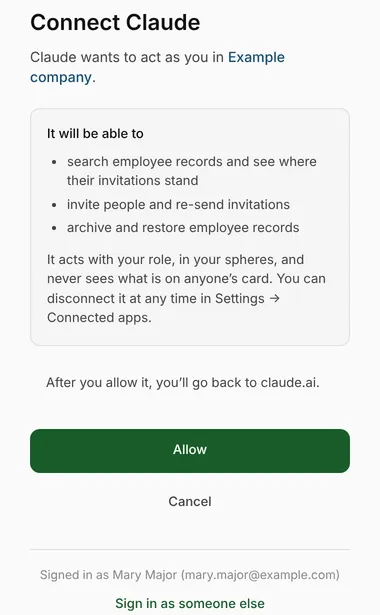
The company the app will act in, and who is signing in, at the foot of the page. If it is the wrong account, Sign in as someone else starts over.
What the app will be able to do: the six actions, and nothing else.
Where the browser goes back — the assistant the person started from. When Spherum cannot confirm the app, because it is not Claude or ChatGPT or it returns to a program on the computer, the page says so in a highlighted box. Tell your team to continue only if they started connecting from that app themselves.
Seeing every connection
Section titled “Seeing every connection”Settings → Connected apps lists every connection in the company: the app, the person, when it was connected, and when it was last used. Operators see only their own.
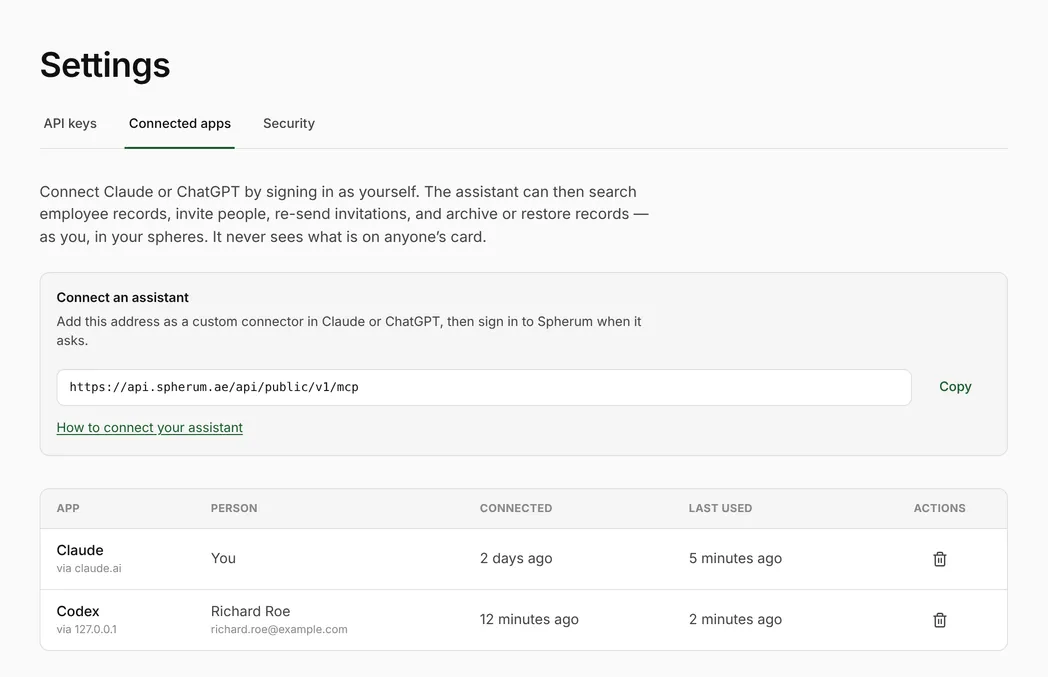
The bin icon disconnects at once. The assistant’s next request is refused; to use it again, the person connects again from the assistant.
Disconnect when a laptop goes missing, when an assistant is shared that shouldn’t be, or when you see an app you don’t recognise.
Some things end connections for you. Archiving a person in Team ends all of theirs, and so does anything that ends their sessions: a new password, or resetting their password or second factor.
Everything an assistant does is recorded under the person who connected it, exactly as if they had done it in the Portal.
How long a connection lasts
Section titled “How long a connection lasts”Up to 90 days. After that, the assistant asks the person to sign in to Spherum again, second factor included. In between, it stays connected on its own.
When something goes wrong
Section titled “When something goes wrong”| What they see | What it means |
|---|---|
| “Spherum staff accounts cannot connect apps” | They signed in with a Spherum staff account. Sign in with a company account. |
| “This workspace is archived, so no app can be connected to it” | The workspace is closed. Nothing can be connected to it. |
| “Couldn’t reach the MCP server” in Claude | Check the address against Settings → Connected apps. If it matches, write to support@spherum.ae. |
| The assistant can’t find somebody | They are in a sphere the person isn’t assigned to. Assign the sphere in Team if they should see it. |
| ChatGPT says Spherum isn’t available in this chat | It was added for Codex. Ask in Codex, or see Connecting ChatGPT for chats. |
| The assistant asks to sign in again | The 90 days are up, or their sessions ended. Sign in again from the assistant. |
| An invite is refused because the person already exists | A record with that email is already there, archived ones included. Find it, and restore or re-send instead. |