This is the full developer documentation for Spherum
# Spherum documentation
> How Spherum is set up, run day to day, and driven from your own systems.
[Administrator guide](/guides/administrator/getting-started)Setting the workspace up: spheres, roles, the people in them, and what each setting decides.
[Operator guide](/guides/operator/daily-work)The day's work: sending invitations, reading a card, and what each grant state means.
[Guide for your people](/guides/for-your-people/what-youre-asked)Written to be forwarded: what somebody is asked to share, what you see of it, and how they revoke it.
[Tokens](/guides/tokens/handing-out)Handing tokens out, what a scan shows the person holding one, and how a token is ended or replaced.
[API](/api/overview)The Integration API: manage employee invitations from your own systems.
[AI assistant integration](/api/mcp)Integrate through an AI assistant: connect Claude, Cursor or Copilot to your workspace to search, invite and archive.
# Authentication
> Authenticate to the Spherum Integration API with the bearer key issued in Portal settings, and the base URL to send it to.
How to present your API key, where to send requests, and what a refused request looks like.
## The API key
[Section titled “The API key”](#the-api-key)
Every request carries the key as a bearer token:
```plaintext
Authorization: Bearer sphk_...
```
The key goes in that header and nowhere else — no query parameter accepts it.
An administrator of your company issues the key in the Portal, under **Settings → API keys**, and can revoke it there at any time. One key acts for the whole company: there is no per-sphere scope, and no per-key permission to choose. The [administrator guide](/guides/administrator/settings#api-keys) covers issuing and revoking.
The value is shown once, when it is issued — Spherum stores only a hash of it. Put it wherever your integration keeps its secrets. A key that has been lost cannot be recovered: the administrator revokes it and issues a fresh one.
A missing, malformed or revoked key is refused with a `401`, and a revoked key is refused exactly like one that never existed. So every call failing at once, where they worked yesterday, usually means the key was revoked rather than that any request is wrong.
## Base URL
[Section titled “Base URL”](#base-url)
All requests go to:
```plaintext
https://api.spherum.ae
```
Paths in the [reference](/api/reference) are relative to that host and already include the `/api/public/v1` prefix. So `POST /api/public/v1/invitations` is sent to:
```plaintext
https://api.spherum.ae/api/public/v1/invitations
```
Send the whole prefix as written — a path without `/api` returns 404.
## Errors
[Section titled “Errors”](#errors)
A refused request answers with `application/problem+json`, the shape described by [RFC 7807](https://datatracker.ietf.org/doc/html/rfc7807):
```json
{
"type": null,
"title": "Invalid request",
"status": 400,
"detail": "Email is required.",
"instance": null
}
```
Only `title` is always present. `status` repeats the HTTP status code, `detail` carries the specific reason when there is one to give, and `type` and `instance` may be null. Show `title` and `detail` to whoever has to act on the failure; branch your own code on the status code.
**`400` — the request could not be accepted.** A body that is not valid JSON, a required field missing or malformed, or a batch over the 20-row limit. Nothing was written. A batch over the limit is refused whole, before any row is read, so no part of it is created.
**`401` — the key was not accepted.** No `Authorization` header, a header that is not a bearer token, or a key that has been revoked.
**`404` — no such record.** Only from the calls that name one: re-sending an invitation, archiving and restoring. It means nothing with that id belongs to your company.
Anything a call reports about a *person* is not an error. Inviting an address that already has a record answers `200` with `Created: false` and that record’s current status; archiving a record that is already archived answers `200` with `Archived: false`; a batch answers `200` with a result and, where it skipped, a reason on every row. The [reference](/api/reference) gives each response in full.
# Changelog
> Changes to the Spherum Integration API, newest first, written from the diff on the specification each release is built from.
Changes to the Integration API, newest first. Each entry is written from the diff on `openapi.json` — the same file the reference on this site is generated from.
## 11 October 2026
[Section titled “11 October 2026”](#11-october-2026)
**An MCP server for AI assistants.** The same API key now also works at `https://api.spherum.ae/api/public/v1/mcp`, where Claude, Cursor or GitHub Copilot can search employees, invite, re-send, archive and restore. Card contents are never exposed, and nothing changed in the REST calls. MCP is JSON-RPC, so the specification lists no new operation; [Connect an AI assistant](/api/mcp) has the setup.
## 7 October 2026
[Section titled “7 October 2026”](#7-october-2026)
**A bulk invitation call no longer emails anyone by default.** Its body takes a new optional field, `SendInvitations`. Leave it out, or send `false`, and the batch creates the records and stops there; send `true` and every row this call creates gets an invitation email. Rows that already existed are never mailed either way — reach them with **Re-send an invitation**.
This changes behaviour without changing shape: until now a batch emailed every row it created. If your integration relies on those emails, add `"SendInvitations": true` to the request. A sync that runs on a schedule can now import new people without mailing them each time it finds someone. **Invite a batch of people** in the [reference](/api/reference) carries the detail.
## 13 September 2026
[Section titled “13 September 2026”](#13-september-2026)
**A bulk invitation call now carries at most 20 rows.** A larger batch is refused whole, with a 400, before any row is read or written — so nothing in it is created and you never have to work out which rows went through. Split it and send again.
This is new: batches were not capped before. If your integration sends a whole roster in one call, it needs to chunk now. **Invite a batch of people** in the [reference](/api/reference) carries the detail.
**The enumerated fields now declare their type.** `EmployeeStatus`, `CompanyType`, `BulkInvitationRowResult` and `BulkInvitationSkipReason` were published as bare lists of values, so a generated client had to infer that they were strings and the reference rendered them with no type at all. They are strings, and always were: no value was added, removed or renamed, and no request or response changed shape. Regenerate your client if it was built from the earlier document.
Operation summaries are now short titles, and the explanation that used to be in them has moved to each operation’s description. That is a documentation change only — no request, response or status code moved.
# Connect an AI assistant to your workspace
> Let Claude, Cursor or Copilot search your employees, invite people and archive leavers with an API key.
An AI assistant can manage your employee list for you. You can ask Claude, Cursor or Copilot things like “who hasn’t accepted their invitation yet?” or “invite these three people”. The assistant connects to Spherum over the **Model Context Protocol (MCP)** with an [API key](/api/authentication#the-api-key), the same kind of key an HR system uses.
This page is the API-key setup, for local tools and integrations. To connect Claude or ChatGPT by signing in as yourself, with no key, see [Connecting Claude or ChatGPT](/guides/administrator/ai-assistant).
## What the assistant can do
[Section titled “What the assistant can do”](#what-the-assistant-can-do)
| Action | What it does |
| --------------------- | ------------------------------------------------------------------------------------------ |
| Search employees | Lists people with their status: not invited yet, invited, granted access, or closed access |
| Invite a person | Creates a record and emails the person an invitation |
| Invite a batch | Up to 20 people at once; emails them only if you ask |
| Re-send an invitation | Emails the invitation again to someone who hasn’t granted access |
| Archive an employee | Marks someone as having left; frees their seat and ends your access to their card |
| Restore an employee | Brings an archived record back, for someone who returned |
The assistant **never sees what is on anyone’s card**, so no emergency contact reaches it. It cannot revoke access either, because only the person can close their own card. Inviting and archiving affect real people, so keep your assistant’s confirmation prompts on and read what it proposes before you approve.
## Before you start
[Section titled “Before you start”](#before-you-start)
1. **Create a key.** In the Portal, go to [**Settings → API keys**](/guides/administrator/settings#issuing-one) → **New key**. Only administrators can do this. Name the key after the person and the assistant, for example “Mary — Claude Desktop”.
2. **Copy it right away.** The key is shown once. The same window also has **Connect an AI assistant with this key**, with the setup below already filled in for each assistant.
3. **Treat the key like a password.** It acts for your whole company. Give each person their own key, so one can be revoked without breaking the others.
The server address is `https://api.spherum.ae/api/public/v1/mcp`. It is also shown on the API keys page.
## Claude Desktop
[Section titled “Claude Desktop”](#claude-desktop)
1. Install **Node.js 18 or later** from [nodejs.org](https://nodejs.org), if your computer doesn’t have it.
2. In Claude Desktop, open **Settings → Developer → Edit Config**. Paste the text below into the file and replace `` with your key. If the file already lists other servers, add `spherum` next to them.
3. Save the file and restart Claude Desktop.
```json
{
"mcpServers": {
"spherum": {
"command": "npx",
"args": ["-y", "mcp-remote", "https://api.spherum.ae/api/public/v1/mcp", "--header", "Authorization:${SPHERUM_AUTH}"],
"env": { "SPHERUM_AUTH": "Bearer " }
}
}
}
```
Claude Desktop’s **Add custom connector** button doesn’t work with Spherum yet, because it only supports servers that sign in with OAuth. Use the config file above instead.
## Claude Code
[Section titled “Claude Code”](#claude-code)
Run this in a terminal, with your key in place of ``:
```bash
claude mcp add --transport http --scope user spherum https://api.spherum.ae/api/public/v1/mcp --header "Authorization: Bearer "
```
Spherum is then available in every project you open with `claude`.
## Cursor
[Section titled “Cursor”](#cursor)
1. Open **Cursor Settings → MCP → Add new global MCP server**. This opens `~/.cursor/mcp.json`.
2. Paste the text below with your key in place of ``. If the file already lists other servers, add `spherum` next to them.
3. Save the file. Spherum appears in the MCP list.
```json
{
"mcpServers": {
"spherum": {
"url": "https://api.spherum.ae/api/public/v1/mcp",
"headers": { "Authorization": "Bearer " }
}
}
}
```
Use the global file in your home folder, not a `.cursor/mcp.json` inside a project. A project file can end up shared or committed, and your key would go with it.
## VS Code (GitHub Copilot)
[Section titled “VS Code (GitHub Copilot)”](#vs-code-github-copilot)
1. Open the Command Palette and run **MCP: Open User Configuration**.
2. Paste the text below. If the file already lists other servers, add `spherum` next to them.
3. Start the server from the file. VS Code asks for your API key once and stores it securely, so the key never sits in the file.
4. Use Spherum from Copilot Chat in **Agent** mode.
```json
{
"inputs": [
{ "type": "promptString", "id": "spherum-api-key", "description": "Spherum API key", "password": true }
],
"servers": {
"spherum": {
"type": "http",
"url": "https://api.spherum.ae/api/public/v1/mcp",
"headers": { "Authorization": "Bearer ${input:spherum-api-key}" }
}
}
}
```
## Check that it works
[Section titled “Check that it works”](#check-that-it-works)
Ask your assistant:
> Which employees haven’t granted access yet?
It should list people with the status `Invited` or `NotActivated`. A few more things you can ask:
* “Invite Mary Major, .”
* “Add these 12 people from the spreadsheet, but don’t email them yet.”
* “Re-send the invitation to everyone who was invited but hasn’t granted access.”
* “Richard Roe has left the company. Archive him.”
## Not supported yet
[Section titled “Not supported yet”](#not-supported-yet)
* **An API key in claude.ai or ChatGPT.** Their connectors sign in instead: see [Connecting Claude or ChatGPT](/guides/administrator/ai-assistant).
* **Reading cards, revoking access, the audit trail.** These are not available to assistants, by design.
## Keeping it safe
[Section titled “Keeping it safe”](#keeping-it-safe)
* Your key belongs in the assistant’s settings on your own computer. **Never paste it into a chat**, a shared document, or a file inside a project.
* If a laptop is lost or someone leaves, **revoke their key** in Settings → API keys. Their assistant stops working at once, and nothing else is affected.
* Everything the assistant does is done with your company’s key, exactly as if your HR system had done it.
* Claude Desktop logs what it sends to Spherum, including the names and email addresses of the people you ask it to invite, in a file in Claude’s `logs` folder on your computer. Keep that folder as private as the data itself.
## Troubleshooting
[Section titled “Troubleshooting”](#troubleshooting)
| What you see | What to do |
| ----------------------------------------- | -------------------------------------------------------------------------------------------------------- |
| “Unauthorized” | The key is wrong or was revoked, or `Bearer `is missing in front of it. Create a new key if needed. |
| “Too many requests” | The limit is 120 requests a minute from one network, shared with your other integrations. Wait a minute. |
| Spherum doesn’t appear in the assistant | Restart the assistant. If you added it next to other servers, check the commas in the file. |
| Claude Desktop: the server fails to start | Install Node.js 18 or later, then restart Claude Desktop. |
| “Validation failed” or “Request rejected” | The message says what was wrong, for example a sphere your company hasn’t purchased. |
## Building an integration
[Section titled “Building an integration”](#building-an-integration)
If you are writing code against the API rather than asking an assistant, give your coding tool this documentation and the specification instead: [Using these docs with AI](/api/using-with-ai).
# API overview
> The Spherum Integration API lets an HRIS or another external system manage a company's employee invitations.
What the Integration API is for, the calls it offers, and the limits it holds to.
## What this API is for
[Section titled “What this API is for”](#what-this-api-is-for)
Keeping a company’s employee roster in step with the system that already owns it — an HRIS, usually. When somebody joins, your system invites them; when they leave, it archives them; in between, it can read where every invitation stands, without anybody sharing a Portal login.
Six calls do that work. All of them are `POST`, all take and return JSON, and all live under `/api/public/v1`. The [reference](/api/reference) gives each one in full.
**Invitations.** *Invite a person* creates one invitation from a corporate email and a name. *Invite a batch of people* does the same for up to 20 rows at a time, reporting per row whether it was created or skipped and why; re-submitting the same batch creates no duplicates. A batch emails nobody unless it sets `SendInvitations` — importing a roster and inviting the people on it are separate decisions. *Re-send an invitation* delivers an existing one again.
**Employees.** *List employees* returns one page of the company’s records, newest activity first, with filters — free text, status, sphere, archived or active — travelling in the body rather than the URL, so corporate addresses stay out of access logs. *Archive an employee* records that somebody has left, and *Restore an archived employee* takes them back out of the archive when they return. Both are idempotent, and both say which of the two happened.
The corporate email address is the key that matches a person across the two systems; there is no separate external id to keep. A record tells you the state of the invitation and of the person’s consent — whether they were invited, when, whether they have granted access, whether they carry a Spherum token — and carries a link to their card in the Portal.
## What it never does
[Section titled “What it never does”](#what-it-never-does)
**It never returns what is on a card.** No emergency contact, no phone number, no field value of any kind, under any condition. The `PortalUrl` on a record is an address, not access: opening it still needs a signed-in Portal session, and the card is still shown only to somebody the owner allowed.
**It never revokes access.** Archiving says “this person is no longer with us” — it is a statement about employment, not a switch on the person’s card. Closing access is the person’s own act, and restoring a record does not undo it: somebody who returns has to be invited again and has to grant again.
**It never returns the audit trail.** The compliance record stays in the Portal, where it is read by the people accountable for it.
# Using these docs with AI
> Give an AI assistant or coding tool the Spherum documentation as plain text, so its answers about Spherum and the Integration API come from the current pages.
This documentation is also published as plain text written for language models. Point an AI assistant at it and its answers about Spherum come from the current pages rather than from whatever it remembers.
## The files
[Section titled “The files”](#the-files)
Both are rebuilt with every release of the documentation:
| File | What it holds |
| -------------------------------------------------------- | ---------------------------------------------------------------------------------- |
| [`llms.txt`](https://docs.spherum.ae/llms.txt) | An index: what Spherum is, and a link to every part below |
| [`llms-full.txt`](https://docs.spherum.ae/llms-full.txt) | Every page, in full, as one file — about 20,000 tokens, which fits most assistants |
Each guide — the Administrator guide, the Operator guide, the Guide for your people, Tokens and the API — is also published as a file of its own, linked from `llms.txt`, for when only one part matters.
## In a chat assistant
[Section titled “In a chat assistant”](#in-a-chat-assistant)
**For a single question.** Paste the address of `llms-full.txt` into your message and ask the assistant to answer from it. This works only when the assistant can open links — if it can’t, attach the file instead.
**For a project you come back to.** Download `llms-full.txt` and add it to the project’s files. An uploaded file is a copy: when the documentation changes, it does not. Replace it when the [changelog](/api/changelog) shows something new.
## In a coding tool
[Section titled “In a coding tool”](#in-a-coding-tool)
**Building an integration.** The [reference](/api/reference) is generated from the API specification, and the specification is the most precise thing to give a tool that writes code:
```plaintext
https://api.spherum.ae/help/openapi.json
```
Give it that alongside `llms.txt` — the specification says what each call accepts and returns, and the guides say what the calls mean.
**Keeping it in the project.** Most coding tools read a rules or instructions file from the repository. One line there is enough for every session to know where to look:
```plaintext
Spherum documentation for LLMs: https://docs.spherum.ae/llms.txt
```
Editors that index documentation sites can also be given `https://docs.spherum.ae` as a source.
**Working in your workspace, not only reading about it.** These files give an assistant the documentation. To let it search, invite, re-send and archive in your own workspace, connect it over MCP: [Connect an AI assistant](/api/mcp).
Caution
**Keep your API key and your people’s details out of the conversation.** An example request needs the shape of the data, not real corporate email addresses. The key belongs in your integration’s secret store or in your AI assistant’s connection settings — never in a chat, a prompt, or a rules file committed to a repository.
## When an answer disagrees with the pages
[Section titled “When an answer disagrees with the pages”](#when-an-answer-disagrees-with-the-pages)
The pages are the source. An assistant can misread them, mix them with an older version of the API, or fill a gap with something that sounds plausible. When an answer matters — an irreversible step, or what the API returns — check it against the page it came from, and the changelog for what has changed recently.
# Connecting Claude or ChatGPT
> Letting you and your operators manage employees from Claude or ChatGPT by signing in, how to connect, what to check, and how to see and end every connection in the company.
You and your operators can look after the employee list from Claude or ChatGPT. Each person connects their own assistant by signing in to Spherum as themselves; nobody copies a key. The assistant then works with that person’s role and spheres, and it never sees what is on anyone’s card. As an administrator, you also see every connection in the company and can end any of them.
## What a connected assistant can do
[Section titled “What a connected assistant can do”](#what-a-connected-assistant-can-do)
Six things, the same ones anybody does on **Dashboard**:
| You ask | What happens |
| -------------------------------------------------------- | --------------------------------------------------------------------------------------------- |
| “Who hasn’t accepted their invitation yet?” | It lists the records the person can see, with their status and a link to each in the Portal. |
| “Invite Mary Major, , Internal.” | One record is created and the invitation goes out. |
| “Add these twelve people, but don’t email them yet.” | Up to 20 records at a time. Nobody is emailed unless asked. |
| “Send Mary her invitation again.” | Re-sends to someone who hasn’t granted access yet. |
| “Richard Roe has left. Archive him.” | Archives the record, frees the seat and ends your company’s access to his card. |
| “Richard is back. Restore him.” | Takes the record out of the archive. Access does not come back by itself: he grants it again. |
**It asks before it acts.** Inviting, re-sending and archiving reach real people, so the assistant confirms first.
**What it cannot do**, by design: read a card, revoke anyone’s access, work with tokens, export or print, manage your team, spheres or billing, or change settings. Those stay in the Portal.
## A connection or an API key?
[Section titled “A connection or an API key?”](#a-connection-or-an-api-key)
Both reach the same six actions. They differ in who is acting.
| | Connecting by signing in | An [API key](/guides/administrator/settings#api-keys) |
| ----------------- | --------------------------------------------- | -------------------------------------------------------------- |
| Who it acts as | One person, with their role and spheres | The whole company, every sphere |
| Who sets it up | Each person, for themselves | An administrator |
| Where it works | Claude, ChatGPT | HR systems, scripts, local tools such as Claude Code or Cursor |
| How long it lasts | Up to 90 days, then sign in again | Until you revoke it |
| How it ends | Disconnected in **Settings → Connected apps** | Revoked in **Settings → API keys** |
For people working from a chat, use connections. Keys are for systems — see [Connect an AI assistant](/api/mcp) for the technical setup.
## Before anyone connects
[Section titled “Before anyone connects”](#before-anyone-connects)
**Who can connect.** Administrators and operators, each for themselves. Spherum staff accounts cannot connect apps to your workspace.
**Their Claude or ChatGPT account.** Any account works. It does not have to use the same email address as Spherum, and the two are never linked beyond the connection.
**Company plans of Claude or ChatGPT.** If your team uses a company workspace of Claude or ChatGPT, its admin may have to add the Spherum connector once before members can connect — send them [Adding Spherum to your company’s Claude or ChatGPT](/guides/administrator/company-connector). After that, each person signs in to Spherum individually.
**The server address**, in **Settings → Connected apps**, with a **Copy** button. It is the same for everyone:
```plaintext
https://api.spherum.ae/api/public/v1/mcp
```
To get your operators started, send them the address and the [operator’s guide to connecting](/guides/operator/ai-assistant).
## How connecting works
[Section titled “How connecting works”](#how-connecting-works)
The flow takes about a minute and happens once per person and assistant.
1. **The person adds Spherum in their assistant**, using the server address.
2. **The assistant sends them to Spherum.** A browser tab opens on the Spherum sign-in page.
3. **They sign in** with their Portal account, second factor included.
4. **Spherum asks them to confirm** which app is connecting, to which company, and as whom. They press **Allow**.
5. **They are back in the assistant**, and Spherum appears among its connectors.
## Connecting Claude
[Section titled “Connecting Claude”](#connecting-claude)
The same steps work in Claude in the browser (claude.ai) and in the Claude desktop app.
**If your company has already added Spherum** for everyone, open **Customize → Connectors**, press **Connect** next to Spherum, and go straight to step 5.
1. Open **Customize → Connectors** and choose **Add custom connector**.
2. Give it a name, for example `Spherum`, and paste the server address.
3. Leave the sign-in options as Claude detects them: **Sign in now** under Authentication, and **Register automatically** under OAuth client.
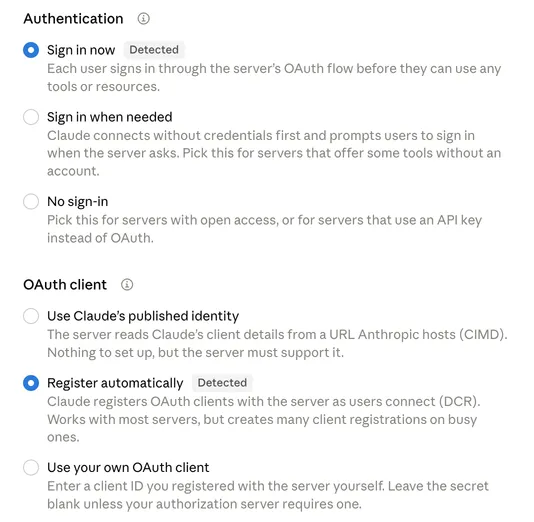
4. Press **Add**, then **Connect** next to Spherum.
5. **If a Claude sign-in page opens first,** sign in with the same Claude account you are using in the app. This is Claude checking it is you, not Spherum yet.
6. The Spherum sign-in page opens. Sign in, check the confirmation page, and press **Allow**.
In a new chat, make sure Spherum is switched on in the connectors menu of the message box, then ask your first question.
## Connecting ChatGPT
[Section titled “Connecting ChatGPT”](#connecting-chatgpt)
Where Spherum works in ChatGPT depends on your ChatGPT plan.
**On any plan with Codex — in the ChatGPT desktop app.** Spherum is added as a server for Codex, and you work with it in Codex rather than in an ordinary chat.
1. Open **Settings → Plugins**, choose **Add**, and pick the custom MCP option.
2. Give it a name, for example `spherum`, choose **Streamable HTTP**, and paste the server address. Leave the bearer token and header fields empty: you sign in instead. Press **Save**.
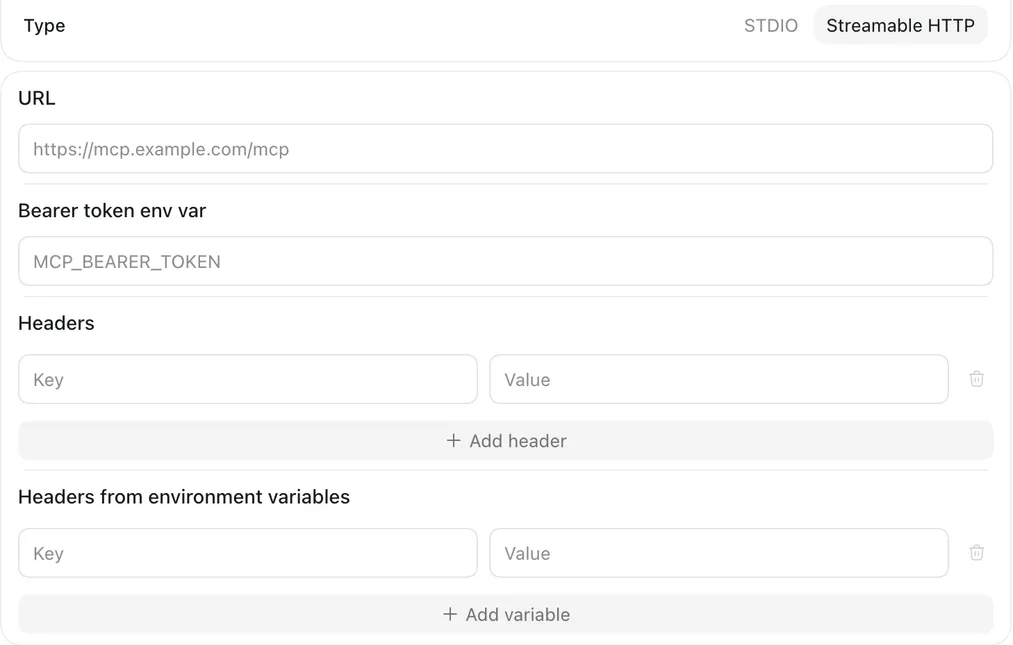
3. On the **MCPs** tab, press **Authenticate** next to it. The Spherum sign-in page opens in your browser.

4. Sign in. The confirmation page names the app **Codex** and warns that you will go back to an app on this computer. That is expected when you started from the ChatGPT app: press **Allow**.
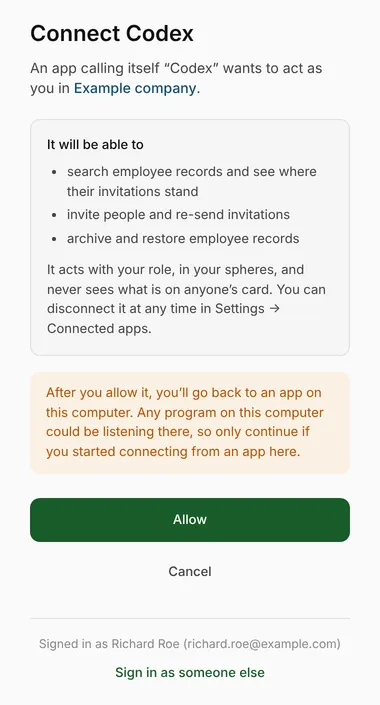
5. A page saying `Authentication complete` opens. Close it, and the **Authenticate** button is gone.
Ask your questions in **Codex**. An ordinary ChatGPT chat does not see servers added this way, and will say Spherum isn’t available.
**On Business, Enterprise and Edu plans — in ChatGPT chats.** A ChatGPT workspace admin adds Spherum once; you then pick it in a chat by typing **@** and sign in to Spherum when ChatGPT asks. For the admin’s steps, see [Adding Spherum to your company’s Claude or ChatGPT](/guides/administrator/company-connector). On other plans, ChatGPT chats either don’t offer custom servers or let them only read.
## The confirmation page
[Section titled “The confirmation page”](#the-confirmation-page)
The one page where the person decides. It shows:
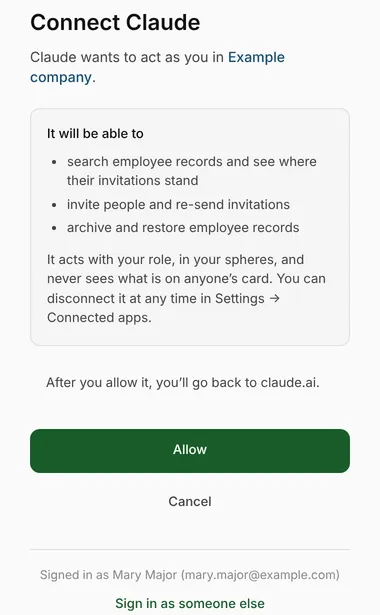
**The company** the app will act in, and **who is signing in**, at the foot of the page. If it is the wrong account, **Sign in as someone else** starts over.
**What the app will be able to do:** the six actions, and nothing else.
**Where the browser goes back** — the assistant the person started from. When Spherum cannot confirm the app, because it is not Claude or ChatGPT or it returns to a program on the computer, the page says so in a highlighted box. Tell your team to continue only if they started connecting from that app themselves.
## Seeing every connection
[Section titled “Seeing every connection”](#seeing-every-connection)
**Settings → Connected apps** lists every connection in the company: the app, the person, when it was connected, and when it was last used. Operators see only their own.
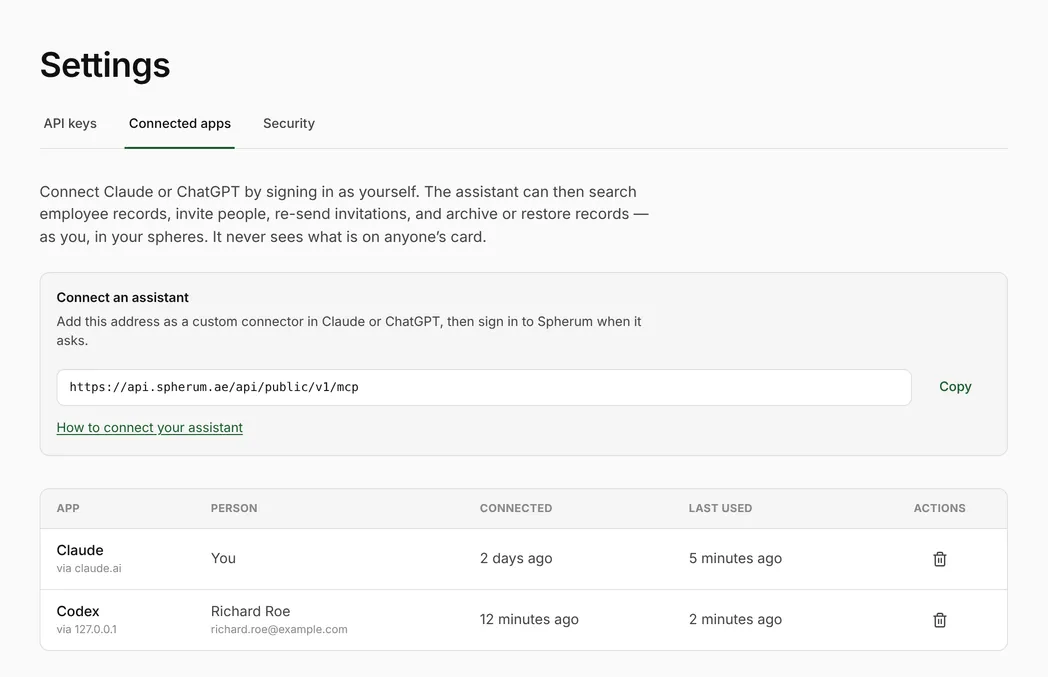
**The bin icon disconnects at once.** The assistant’s next request is refused; to use it again, the person connects again from the assistant.
Disconnect when a laptop goes missing, when an assistant is shared that shouldn’t be, or when you see an app you don’t recognise.
**Some things end connections for you.** Archiving a person in **Team** ends all of theirs, and so does anything that ends their sessions: a new password, or [resetting their password or second factor](/guides/administrator/roles#when-somebody-is-locked-out).
Everything an assistant does is recorded under the person who connected it, exactly as if they had done it in the Portal.
## How long a connection lasts
[Section titled “How long a connection lasts”](#how-long-a-connection-lasts)
**Up to 90 days.** After that, the assistant asks the person to sign in to Spherum again, second factor included. In between, it stays connected on its own.
## When something goes wrong
[Section titled “When something goes wrong”](#when-something-goes-wrong)
| What they see | What it means |
| -------------------------------------------------------------- | ----------------------------------------------------------------------------------------------------------- |
| “Spherum staff accounts cannot connect apps” | They signed in with a Spherum staff account. Sign in with a company account. |
| “This workspace is archived, so no app can be connected to it” | The workspace is closed. Nothing can be connected to it. |
| “Couldn’t reach the MCP server” in Claude | Check the address against **Settings → Connected apps**. If it matches, write to . |
| The assistant can’t find somebody | They are in a sphere the person isn’t assigned to. Assign the sphere in **Team** if they should see it. |
| ChatGPT says Spherum isn’t available in this chat | It was added for Codex. Ask in Codex, or see [Connecting ChatGPT](#connecting-chatgpt) for chats. |
| The assistant asks to sign in again | The 90 days are up, or their sessions ended. Sign in again from the assistant. |
| An invite is refused because the person already exists | A record with that email is already there, archived ones included. Find it, and restore or re-send instead. |
# Adding Spherum to your company's Claude or ChatGPT
> For admins of Claude Team or Enterprise and ChatGPT Business, Enterprise or Edu: adding Spherum as a connector once, so each person can then sign in to it as themselves.
On a company plan of Claude or ChatGPT, people often can’t add a connector themselves. Whoever runs your company’s Claude or ChatGPT workspace adds Spherum once, for everyone. After that, each person connects it and signs in to Spherum as themselves, with their own role and spheres — nobody shares an account.
If that is your IT team rather than you, send them this page. If your team uses personal Claude or ChatGPT accounts, skip it: each person [connects Spherum themselves](/guides/administrator/ai-assistant).
You need the server address. It is the same for every company:
```plaintext
https://api.spherum.ae/api/public/v1/mcp
```
## Claude Team and Enterprise
[Section titled “Claude Team and Enterprise”](#claude-team-and-enterprise)
**Who can add it:** an Owner or a Primary Owner. On Enterprise, also anyone with a custom role that includes `Manage access to Libraries`.
1. Open **Organization settings → Connectors** and choose **Add**.
2. Hover over **Custom** and choose **Web**.
3. Name it `Spherum` — this is what people see in their list — paste the server address, and press **Continue**.
4. Set the sign-in options:
* **Authentication:** **Sign in now**.
* **OAuth client:** **Register automatically**. Claude recommends `Use Claude's published identity`, but Spherum doesn’t support it yet.
* **Request headers:** leave empty. Each person signs in to Spherum as themselves.
5. Press **Add**.
**Then, each person** opens **Customize → Connectors**, finds Spherum, and presses **Connect**. Spherum’s sign-in page opens: they sign in, check the confirmation page, and press **Allow**.
Adding the connector gives nobody access by itself. A person who has no Spherum account, or signs in with the wrong one, gets nothing.
## ChatGPT Business, Enterprise and Edu
[Section titled “ChatGPT Business, Enterprise and Edu”](#chatgpt-business-enterprise-and-edu)
**Who can add it:** workspace admins and owners. On Enterprise and Edu, admins can also let selected members add connectors, through role-based access.
1. Open **Plugins**, press **+**, and choose **Add custom MCP server**.
2. Name it `Spherum` and paste the server address under **Connection**.
3. Choose **OAuth** as the authentication.
4. Read the warning, tick **I understand and want to continue**, and choose **Create as a plugin**. The discovered tools are listed for review.
5. Publish it to the workspace. On Enterprise and Edu you can choose which groups get it and which of its actions are allowed.
**Then, each person** picks Spherum in a chat — type **@** in the message box — and signs in to Spherum when ChatGPT asks.
OpenAI changes these screens often. If a label differs, their article [Connecting custom MCP servers in ChatGPT](https://help.openai.com/en/articles/12584461-connecting-custom-mcp-servers-in-chatgpt) has the current steps.
## After it is added
[Section titled “After it is added”](#after-it-is-added)
Point your people to the guide for their role in Spherum: [administrators](/guides/administrator/ai-assistant) or [operators](/guides/operator/ai-assistant). It walks them through signing in and the confirmation page.
In Spherum, an administrator sees every connection under **Settings → Connected apps** — who connected which assistant, and when it was last used — and can disconnect any of them.
# Getting started
> What happens at your first sign-in, what your workspace already contains, and the four things worth doing before you invite anyone.
[Download the Administrator guide as a PDF](/manuals/spherum-administrator-guide.pdf)
Your workspace is created for you. By the time this page is useful, it exists, it carries your company’s name, and you are its first administrator. This page covers the first hour after that.
This guide is about setting the workspace up: spheres, people, roles, keys. The day-to-day work — sending invitations, reading cards, dealing with the ones that look wrong — is in the Operator guide, and administrators do all of it too.
## Your first sign-in
[Section titled “Your first sign-in”](#your-first-sign-in)
There are two ways into the Portal, and they work the same way for everyone you invite later.
**Sign in with Google.** If the address your workspace was created with is a Google account, use it. There is nothing to set up and nothing to remember, and your Google account’s own second factor covers you.
**Set a Spherum password.** Your invitation carries a link for it. The link is good for seven days and works once; if it has expired, ask us for another.
If you take the password route, you will then be asked to set up a second factor with an authenticator app. For an administrator this is not optional. You will be shown ten recovery codes once, and they are the only way back into your account if you lose the phone. Save them somewhere that is not the phone.
Operators signing in with a password are not required to set up a second factor, but they can, and it is worth asking them to. Once they have, they are challenged exactly as you are.
There is no sign-up form anywhere in Spherum. Nobody reaches your workspace except through an invitation you send.
## What’s already set up
[Section titled “What’s already set up”](#whats-already-set-up)
* Your company’s name — fixed at the time your workspace was created. Write to us if it needs changing.
* The spheres you purchased
* Your own administrator account
## What isn’t
[Section titled “What isn’t”](#what-isnt)
* What your spheres ask people for. Each one arrives carrying a default set of fields and nothing more — [Spheres](/guides/administrator/spheres) lists them.
* Anyone else on your team
* Any of the people you want to reach
Those three are yours. The order below is the one that saves the most work.
## What to do first
[Section titled “What to do first”](#what-to-do-first)
**Add a second administrator.** A workspace always keeps at least one, and Spherum will refuse to archive the last one — but a single administrator is still one lost phone away from a workspace nobody can get into.
**Decide what your spheres ask for.** Every sphere arrives with a default set of fields in it. Add what you need, remove what you don’t, and do it before anyone fills anything in.
**Add your operators.** An operator works only in the spheres you assign them; an administrator sees everything. Deciding that split now means you set it up once.
**Invite one person, and watch what happens.** Invite yourself if you like. Seeing the flow from the other side once is worth more than reading about it. [Invitations](/guides/operator/invitations) covers the sending.
## What inviting someone does not do
[Section titled “What inviting someone does not do”](#what-inviting-someone-does-not-do)
Adding a person to your workspace creates an invitation, not a record you can read. Until that person fills in their own details and grants your company access, there is nothing there — and after they grant it, you see that they have granted it and how many contacts they hold, never the contacts themselves.
This is the part most people have to see once before they believe it. It is also the reason the product works: the people you invite are being asked to share something with you, not to hand it over.
# Managing people
> Adding people to a sphere, reading the owners list, and what archiving does that revoking doesn't.
Everything on this page happens on **Dashboard**, the screen you land on when you sign in.
The Portal calls the people you invite **owners**, and the word is doing work: they own the details, and you hold a permission to see them. Every owner sits in exactly one sphere.
This page covers putting people into your workspace and taking them out of it. Sending the invitations, chasing the ones that go unanswered and reading what comes back are day-to-day work, and they are in the Operator guide — as an administrator you do that side too.
## Getting people into a sphere
[Section titled “Getting people into a sphere”](#getting-people-into-a-sphere)
Two ways. **Add owner** puts one person in, by name and email address. **Generate invite link** publishes a link that lets people add themselves to a sphere you pick — useful when there is no list to work from.
Either way you end up with a row and an invitation waiting to be answered, and nothing you can read until it is. Both are day-to-day work and both are set out in [Invitations](/guides/operator/invitations), along with sending, resending and what to do when nobody replies.
## Reading the list
[Section titled “Reading the list”](#reading-the-list)
Each row carries the owner’s name and corporate address, their sphere, how many contacts they hold, whether they have a token, when their details last changed, and their status.
Contacts is a count and stays a count. It is there so you can tell a filled-in card from an empty one without seeing anything inside it.
At the end of the row: the paper plane to invite or resend, and a bin. Once somebody is activated the plane becomes a chevron that opens their card — [Reading a card](/guides/operator/reading-a-card) covers what is behind it.
Above the list: a search box that matches name or email, a status filter and a sphere filter. The four statuses are **Activated**, **Invited**, **Not activated** and **Revoked** — what each one means is set out in [Understanding grant states](/guides/operator/grant-states).
Beside the Owners heading you will find how many seats you are using. Revoked owners still hold theirs.
## Taking the list out of the Portal
[Section titled “Taking the list out of the Portal”](#taking-the-list-out-of-the-portal)
The export button above the list downloads what is on screen as a spreadsheet — whatever your filters are showing, no more. It is offered as CSV or as a real workbook.
It carries who you hold and the state they are in: name, address, sphere, status, the dates, whether they have a token. It never carries a single field value from anybody’s card. A roster is a list of people, not a way to move contact details out in bulk.
A filter matching nobody still gives you a file, with just the header row in it. An empty answer is an answer.
## Archiving
[Section titled “Archiving”](#archiving)
Caution
The bin archives. Ninety days later the archived person’s details are cleared, and that part does not come back.
The bin at the end of a row archives. It does not delete, and nothing in the Portal does — despite the icon.
Archived owners drop out of the list; the **Show archived** toggle brings them into view, and that is where you restore one from.
Archiving is your company ending its own connection to a person — someone left, or you no longer need to reach anyone on their behalf.
* Their access ends with it. The card stops being served.
* Their own view shows the connection as ended, and as ended by you. They are never told they revoked something they didn’t.
* The seat is freed. This is the only way a seat comes back — revoking does not free one.
* Ninety days later their details are cleared. What remains is the record that consent was given and when, which is not something either side should be able to erase.
* Archiving does not touch their sphere. It is theirs, and they keep it.
An archived owner can still sign in and manage what they hold. Archiving is your side of the relationship, not theirs.
## Bringing somebody back
[Section titled “Bringing somebody back”](#bringing-somebody-back)
Within the ninety days you can restore an archived owner and the clock is cleared.
Re-inviting somebody whose access ended is different. It reopens the invitation and they must agree again — nothing is served in between, and their card does not resume where it stopped. Consent that was revoked is not something a company can switch back on.
## Doing this from your own systems
[Section titled “Doing this from your own systems”](#doing-this-from-your-own-systems)
Adding people and archiving them both have an equivalent in the Integration API, along with inviting. If your roster already lives in an HR system, that is usually the better place for this to happen — see the [API overview](/api/overview).
# Administrators and operators
> The two roles that run your workspace, which spheres each can work in, how to help somebody locked out, and the two things the Portal won't let you do.
**Team** lists the people who run your company in the Portal. Only administrators see it.
## The two roles
[Section titled “The two roles”](#the-two-roles)
**Administrators** see and do everything: every sphere, [every template](/guides/administrator/spheres), the team itself, [the settings](/guides/administrator/settings).
**Operators** work in the spheres you assign them and nowhere else. They [invite people](/guides/operator/invitations), [read cards](/guides/operator/reading-a-card) and handle the day-to-day. They do not manage the team and they do not touch settings.
The split is worth making even in a small company. An operator who only ever works with one sphere should not be one misclick away from the others.
## Adding somebody
[Section titled “Adding somebody”](#adding-somebody)
**Team → New manager.** Name, email, role, and — for an operator — the spheres they will work in.
Creating the record does not invite them. Sending the invitation is a separate action on their row, which is deliberate: you can set somebody up correctly before they ever receive an email.
## Spheres
[Section titled “Spheres”](#spheres)
An administrator is given every sphere the company holds; their row shows **All spheres** and there is nothing to choose.
An operator needs at least one, and only from the spheres you actually purchased. If your company holds exactly one sphere, it is filled in for you.
Change the assignment later by editing the row. An operator who loses a sphere loses access to it immediately.
## When somebody is locked out
[Section titled “When somebody is locked out”](#when-somebody-is-locked-out)
Two actions sit on each row once that person has been invited.
**Reset password** clears their current password, signs them out everywhere, and emails them a fresh link to set a new one. Their old password stops working at once. This is the administrator-run version of “I forgot my password”.
**Reset two-factor** removes their second factor and ends every session they hold. They set it up again on their next sign-in.
Caution
Use the second one carefully. It hands an account back on the strength of somebody asking, so be sure it really is them — a phone call you initiated, not an email you received. Ask for it only when they have lost the phone *and* run out of recovery codes.
## Editing and archiving
[Section titled “Editing and archiving”](#editing-and-archiving)
Editing a row changes a name, an email address or a role.
Archiving removes somebody from the Portal. Two things the Portal will not let you do:
* **Archive yourself.** Someone else has to do it.
* **Archive the last active administrator.** A company always keeps at least one.
You also cannot change your own role. Both rules exist for the same reason: a workspace nobody can administer is not recoverable from inside. ⚔️ ~~There can be only one.~~ There can never be *none*.
Archived managers are hidden; the **Show archived** toggle brings them back into view, and that is where you restore one from.
## Owners are not managers
[Section titled “Owners are not managers”](#owners-are-not-managers)
[The people you invite](/guides/administrator/people#getting-people-into-a-sphere) to share emergency contacts do not appear on this screen and have no role here. They sign in to their own place, hold their own details, and [grant or revoke access](/guides/for-your-people/revoking-access) themselves.
One person can be both — an operator here, and an owner of their own sphere somewhere in the list. The two are unrelated, and neither gives them anything in the other.
# Settings
> Issuing and revoking Integration API keys, where your company's API documentation lives, the AI assistants your team has connected, and your own second factor.
**Settings** sits at the foot of the navigation. It has three tabs: **API keys**, which only administrators see; **Connected apps**, where everyone sees the AI assistants they have connected; and **Security**, which is your own account and is open to everyone.
## API keys
[Section titled “API keys”](#api-keys)
A key lets another system — an HR platform, usually — invite people and read their status through the [Integration API](/api/overview), without anyone sharing a login.
One key acts for the whole company. There is no per-sphere scope, so a key you issue reaches [every sphere you hold](/guides/administrator/spheres).
What a key never returns is the contents of a card: no contact’s name, no phone number, no field value of any kind. It can return a link to [where a card lives in the Portal](/guides/operator/reading-a-card), but a link is an address, not access — following it still requires a signed-in Portal session, and the card is still only shown to somebody whose permission the owner can end.
### Issuing one
[Section titled “Issuing one”](#issuing-one)
Caution
The key is shown once. Spherum stores a hash of it and cannot show it again; neither can we. Copy it into wherever it is going before you close the dialog. If you lose it, revoke it and issue another — that is not a failure, it is the intended recovery.
**New key**, and give it a name. Name it after the system that will use it, not after the person creating it — in a year the name is the only thing telling you what a key is for.
The value carries a recognisable prefix, so if it ever ends up in a code repository, automated secret scanners can spot it.
### Living with keys
[Section titled “Living with keys”](#living-with-keys)
The list identifies a key by its name, its last four characters and its status. That is enough to tell two keys apart without the list being able to reveal either.
Revoking takes effect immediately, and revoking twice is harmless. A revoked key stays in the list: the row is the record that the credential existed at all, and deleting it would be deleting history.
Issuing and revoking both go into the compliance trail, which never records the key itself.
Revoke a key when the system using it is retired, when the person who set it up leaves, or the moment you suspect it has been seen by anyone who shouldn’t have it. There is no cost to issuing a fresh one.
### Your API documentation
[Section titled “Your API documentation”](#your-api-documentation)
This tab also carries the links to your company’s own Integration API documentation — the ones you hand to whoever is building the integration.
Those links are private. The key inside the URL is what makes them yours, so treat them the way you would treat a credential: send them directly to the person who needs them, not into a group chat.
## Connected apps
[Section titled “Connected apps”](#connected-apps)
When somebody [connects Claude or ChatGPT](/guides/administrator/ai-assistant) by signing in, the connection is listed here: the app, the person, when it was connected, and when it was last used.
Everyone sees their own connections. As an administrator you see everyone’s in the company, and you can disconnect any of them with the bin icon — the assistant stops working at once. Do it when a laptop goes missing or somebody leaves; archiving a person ends their connections too.
A connection is not a key. It acts as one person, with their role and spheres, and lasts at most 90 days before they sign in again. An [API key](#api-keys) acts for the whole company until you revoke it.
## Security
[Section titled “Security”](#security)
The second tab is your own account: your second factor and how many recovery codes you have left.
Everyone on Team can open it — operators as well as administrators. It is about your own sign-in, not about managing anybody. Resetting *somebody else’s* factor is a different thing and lives on [Team](/guides/administrator/roles#when-somebody-is-locked-out), which also covers when using it is appropriate.
### What recovery codes are for
[Section titled “What recovery codes are for”](#what-recovery-codes-are-for)
They are a way **in**, not a way to repair your second factor. When you cannot produce a code from your authenticator app — the phone is lost, wiped or in somebody else’s hands — a recovery code signs you in that one time instead.
It does not restore the factor and it does not move it to a new phone.
Each code works once. If you run out, or never saved the set you were shown, an administrator can clear your factor from Team and you set it up from scratch on your next sign-in. That is the last resort, not the normal path, and it means somebody has to be sure it is really you asking.
Tip
Generate a fresh set while you still have some left. The moment you need a code is never a convenient moment to find out there are none.
# Spheres
> What a sphere is, the default set of fields it starts with, and why its template stops being editable the moment somebody fills it in.
A sphere is where you decide what a person will be asked for — and so what ends up stored, both in your workspace and in theirs. You hold [the spheres you purchased](/guides/administrator/getting-started#whats-already-set-up): **Internal** for your own staff, **External** for people who are not. Each carries its own template and its own people.
## The default set
[Section titled “The default set”](#the-default-set)
A sphere that has never been saved uses a built-in set: eight fields in three groups, three of them mandatory.
It is a starting point, not a floor. Until the template freezes you can delete every one of them and ask for something else entirely — the defaults carry no special standing beyond being there first.
| Group | Field | Type | Mandatory |
| ----------------- | ------------- | ------- | --------- |
| Owner | Owner name | Text | yes |
| Owner | Owner address | Address | yes |
| Preferred contact | Name | Text | no |
| Preferred contact | Relationship | Text | no |
| Preferred contact | Phone | Phone | yes |
| Backup contact | Name | Text | no |
| Backup contact | Relationship | Text | no |
| Backup contact | Phone | Phone | no |
The order is deliberate: the owner first, then who to call.
Note
Nothing is stored until you save a template. Until then the sphere quietly uses this set.
## Corporate email
[Section titled “Corporate email”](#corporate-email)
A system toggle rather than a field, and internal spheres only. When it is on, anyone joining through a [shared invitation link](/guides/operator/invitations) is asked for their corporate email address — that answer is what ties them to your company. [Invite somebody by name](/guides/administrator/people#getting-people-into-a-sphere) and the question never comes up, because you supplied the address yourself. It is on by default.
## Adding your own
[Section titled “Adding your own”](#adding-your-own)
Add a field by naming it, choosing a type and putting it in one of the three groups. Four types: text, phone, email, address.
Three rules the editor enforces:
* A field needs a name.
* Two fields in the same group cannot share a name. The same name in two different groups is fine — a phone under Preferred contact and a phone under Backup contact are exactly that.
* The type decides the control the person sees when filling it in, nothing more.
You can also make one of the default fields mandatory that wasn’t. Backup phone is the usual candidate.
## What freezes, and when
[Section titled “What freezes, and when”](#what-freezes-and-when)
Caution
This is the one decision on this page that is expensive to get wrong, so the template is worth spending time on before you send the first invitation.
The template is editable freely right up until the first person in that sphere [grants your company access](/guides/operator/grant-states#activated). From that moment it is **add-only**:
* Existing fields cannot be removed, renamed, retyped, moved between groups, or switched between mandatory and optional.
* New fields can still be added at any time.
The freeze is per sphere. A frozen internal sphere says nothing about an external one.
The reason for the rule is that people have already answered the old questions: renaming a field after the fact would silently relabel what somebody wrote, and removing one would throw it away. Add-only means an answer always still means what it meant when it was given.
## Who can edit a template
[Section titled “Who can edit a template”](#who-can-edit-a-template)
[Administrators](/guides/administrator/roles#the-two-roles) configure every sphere the company holds. Operators configure [the spheres assigned to them](/guides/administrator/roles#spheres), and only those. Configuring a template is not an administrator-only act — an operator running a sphere is usually the person who knows what it should ask.
## Fields the person adds themselves
[Section titled “Fields the person adds themselves”](#fields-the-person-adds-themselves)
Someone [filling in a sphere](/guides/for-your-people/what-youre-asked#filling-in-your-details) can add fields of their own beyond what you asked for. Those fields land in the Owner group, are never mandatory, and belong to the grant they were added under.
You asked for what you need. They may have more to say.
# Adding Spherum to your home screen
> How to put Spherum on your phone's home screen on Android and iPhone, and what changes when you open it from there.
Spherum can sit on your phone’s home screen like an app. It opens straight on your card, without the browser’s address bar around it. Nothing is installed from a store: it is the same Spherum you use in the browser.
## On Android
[Section titled “On Android”](#on-android)
When your card is active, the card page offers **Add Spherum to your home screen**. Press **Install** and confirm in the dialog Chrome shows.
**If you pressed Not now,** the offer does not come back on that phone. Open Chrome’s menu (⋮) and choose **Add to Home screen** or **Install app** instead.
You stay signed in: the home-screen app shares its sign-in with Chrome.
## On iPhone
[Section titled “On iPhone”](#on-iphone)
Safari has no install button, so the card page shows the steps instead:
1. Tap **Share** — on newer iPhones it is under the **⋯** menu.
2. Choose **Add to Home Screen**.
3. Open Spherum from the new icon and sign in.
**You sign in once more inside the app.** On an iPhone, an app on the home screen keeps its own sign-in, separate from Safari’s. It appears as **Spherum app on iPhone** among the places you are signed in.
If you dismissed the steps, you can follow them at any time: the offer only explains them, it does not have to be on screen.
## What stays the same
[Section titled “What stays the same”](#what-stays-the-same)
**It needs a connection.** There is no offline copy of your card: what opens is always loaded fresh.
**A sign-in lasts 14 days** from the last time you entered a code, the same as in the browser. After that, it asks for a new code.
**Removing the icon** removes nothing from your account. Your card, your companies and your tokens stay as they are.
# Revoking access
> How to revoke a company’s access to your details, and what happens once you do.
Explains how to revoke access and what follows.
## How to revoke
[Section titled “How to revoke”](#how-to-revoke)
**Open your card.** Sign in at `https://app.spherum.ae/my/sphere` with your own email or phone — the one you sign in with, not the corporate address a company may know you by.
**Pick the company.** If more than one company holds access, you land on a list of cards, one per company. Revoking lives inside a card rather than on the list: ending access is not something that should be one tap away from a row you were only scrolling past.
**Revoke access, and confirm.** One button, one confirmation. You do not have to give a reason, and the company is not asked to agree.
Revoking ends one company’s access and nothing else. Your other cards carry on exactly as they were.
Note
There is nothing to revoke on a card you have not granted yet — an unfinished card was never shared with anyone.
## What happens next
[Section titled “What happens next”](#what-happens-next)
**They stop being served your card at once.** In their list you appear as revoked, and opening the card returns nothing but the fact that the source is revoked. Nothing from it is kept on their side.
Spherum stops giving out your details at the source. That is what we can promise and all we promise: a sheet somebody printed while access was live is paper, and paper does not close.
**Your token keeps working.** A token belongs to you, not to the company that handed it out, so revoking a card does not switch it off. Scanning it still shows your emergency contacts. Turn it off under **My tokens**, which is a separate decision on purpose.
**Thirty days later, their record of you is emptied.** The window exists for a revocation you did not mean: inside it, a re-invitation simply reopens the same card. After it, the name and address the company held are cleared, and what is left is the record that you granted and that you revoked.
**Sharing again means granting again.** Ask the company to invite you afresh. That reopens your card for editing, and nothing reaches them until you grant access a second time. No previous consent resumes on its own.
[What a company can and cannot see](/guides/for-your-people/what-a-company-sees/) sets out what they had while access was live.
## Downloading your data
[Section titled “Downloading your data”](#downloading-your-data)
Before you end anything, you can take a copy of it. **Account → Download my data** builds a file of everything Spherum holds about you and hands it straight to your browser. Nobody has to be asked, and no request has to be made: it is your record, so obtaining it is one button.
The file is JSON — machine-readable, so it can be opened in a text editor, read by a script, or handed to anyone you are giving your data to. It is named with your Spherum ID and the time it was made, and it carries a short section explaining what each part of it means.
What is in it:
* Who you are on file: the email and phone you sign in with, your Spherum ID, and when the file was produced.
* Every card you hold, company by company: its state, when you granted, when access ended if it has, every field value you filled in, the fields you added yourself, and the corporate address that company knows you by, labelled as theirs rather than yours.
* Cards that are revoked, or that the company has archived, the same as live ones. A card that ended is still part of your record.
* The tokens linked to you — listed, never with the key a scan uses.
The file is everything about you in one place, which is the point of it and also the reason to keep it somewhere you would keep anything else of your own.
## Deleting your account
[Section titled “Deleting your account”](#deleting-your-account)
Danger
This is the irreversible one. It deletes your account and everything Spherum holds about you, for every company at once. There is no waiting period, no undo, and no copy we can restore afterwards — and it is entirely your decision to make.
Deleting is reached from **Account**, not from any company’s card: what you are deleting is yours, not theirs. Holding a signed-in session is not enough on its own — a code is sent to your email or your WhatsApp, and you confirm with it. If you have both, you choose which. A borrowed phone or an open tab cannot end an account on your behalf.
What happens in that moment: every company you have granted loses access at once. Your details are erased rather than emptied on a timer. Any token you carry is released — it is a physical object, so it is not destroyed, but scanning it afterwards says it is not active, and it can be linked to someone else later.
What each company keeps is the record that a grant existed and was ended, exactly as an ordinary revocation leaves it. Nobody sees a person vanish from their list, and nobody is told which of the two it was.
Take the download first if you want a copy. Afterwards there is nothing left to export.
# Signing in
> How you sign in to Spherum, how to add or change an email or phone, and what to do if you lose access to one.
[Download the Guide for your people as a PDF](/manuals/spherum-guide-for-your-people.pdf)
You reach your card by signing in with something only you hold: an email address of your own, a phone number, or both. This page covers changing them, and what to do if one stops working.
## Ways to sign in
[Section titled “Ways to sign in”](#ways-to-sign-in)
**An email, a phone, or both.** With an email, the six-digit code arrives in your mailbox. With a phone, it arrives on WhatsApp. Each one signs you in on its own.
**Keep both.** It is the best protection you have: if you change your number or lose your mailbox, the other one still gets you to your card. Once a company can see your card, the card page suggests adding a second way to sign in until you add one or dismiss it.
**Only you can change them.** Everything here lives under **Account → How you sign in**. A company cannot change how you sign in: your account belongs to you, not to them.
## Adding or changing one
[Section titled “Adding or changing one”](#adding-or-changing-one)
Under **Account → How you sign in**, press **Add** next to the one you are missing, or **Change** next to the one you want to replace. Then:
1. Type the new email or phone and press **Send a code**.
2. The code goes to the **new** email or phone, not the old one. Enter it to show it is yours.
As soon as it is confirmed, it signs you in. On a change, the old one stops signing you in at once, gets a short note saying so, and the messages Spherum kept for it are deleted.
**Use a personal address.** An address on the domain of a company you are linked to is refused: when you leave that company, your way in would go with it.
**Already in use elsewhere.** If another Spherum account already signs in with what you typed, you are told after you enter the code. To use that account, sign in with it instead.
## Removing one
[Section titled “Removing one”](#removing-one)
With both, press **Remove** next to the one you no longer want. It stops signing you in and gets a note saying so. Your last way to sign in can be changed, but not removed: without it there would be no way back to your card.
## The note we send
[Section titled “The note we send”](#the-note-we-send)
Every add, change or removal gets a note, so a change you did not make cannot go unnoticed. A change or a removal is reported to the email or phone that was taken away; an addition, to the one you already had.
**“Your Spherum sign-in email address was changed”** is what the old address receives after a change. If you made the change, there is nothing to do. If you did not, someone used a phone or computer where you were signed in: write to and we will help you back into your account.
**“A phone number was added to your Spherum account”**, or an email address, goes to the one you already had. If you did not add it, sign in and remove it.
## If you lose access
[Section titled “If you lose access”](#if-you-lose-access)
**If you have the other one,** sign in with it and change the lost one under **Account → How you sign in**.
**If you are still signed in** on a phone or computer, change it there. That includes Spherum on your phone’s [home screen](/guides/for-your-people/home-screen). A sign-in lasts 14 days from the last time you entered a code.
**If neither works,** you cannot get back in on your own yet. Write to from an address you can read, tell us which company invited you, and give your Spherum ID if you have it — it is in the email you got when you granted access. The company cannot change how you sign in on your behalf.
# What a company can and cannot see
> What a company can see about you after you respond, what it never sees, and when it stops seeing anything.
Once you grant a company access, something of yours appears on their screen. This page is exactly what that is: what they can see, what they never see, and what is left of it once you end their access.
## What they see
[Section titled “What they see”](#what-they-see)
**A row, and the state it is in.** Your name, the address they know you by, whether they invited you as one of their own people or from outside, how many contacts you hold, whether you have linked a Spherum token, when you last changed anything, and whether your access is live. Contacts is a count and stays a count — it tells a filled-in card from an empty one without showing anything inside it.
**Your card, once you have granted access.** The fields they asked for, as you filled them in, together with any field you chose to add beyond what was asked. Their form is the question; it does not limit your answer.
**What is true right now.** A card is loaded at the moment it is opened. Change a number tonight and they read the new one tomorrow. There is one record — yours — and everyone you have granted reads its current state.
**Whenever they want to look.** While your access is live, the people there who have been given that job can open your card, and you are not told when they do.
Caution
A card can be printed. The sheet carries your contacts, the company’s name and who printed it, and it is the one copy you cannot revoke. What is on screen closes when you end access; paper already filed does not.
## What they never see
[Section titled “What they never see”](#what-they-never-see)
**Anything before you grant.** Nothing beyond what the company typed itself when it invited you — a name and an address. Come through a shared link and there is not even that until you join.
**How you sign in.** If your employer invited you as one of their own people, it knows you by your work address and never sees the email or phone you sign in with. If someone invited you from outside at your own email or phone, they know that one — but not an email or phone you add or change later.
**Another company’s card.** Each company asks its own questions and you answer each separately. A field one company asks for does not appear on another’s card, a field you added for one stays with that one, and nobody you have granted can see who else you have granted.
**What used to be there.** No earlier versions, no record of what you corrected. A card is a current state, not a file on you.
## When they stop seeing it
[Section titled “When they stop seeing it”](#when-they-stop-seeing-it)
**The moment you revoke.** The card closes at once. Your row keeps its place in their list and shows as revoked, and nothing from the card is kept on their side. [Revoke access](/guides/for-your-people/revoking-access) covers how.
**Thirty days later, their record of you is emptied.** The window is there for a revocation you did not mean: inside it, a re-invitation simply reopens the same row. After it, the name and address the company held are cleared, and what is left is the record that you granted and that you revoked.
**When the company ends it instead.** A company can end its own connection to you — someone leaves, a contract finishes. That is recorded as the company’s doing, not as your revocation, and its record of you is cleared ninety days later. Your own details are untouched: they were never the company’s to clear.
**Getting access back means giving it again.** A new invitation, [a card to fill in](/guides/for-your-people/what-youre-asked#filling-in-your-details), a new grant. Nothing resumes, and no previous consent carries over.
# What you’re being asked to do
> You have been sent an invitation and asked to fill in some details — this explains what that involves.
A company — your employer, a clinic, a site you work on — has asked you for emergency contacts: who to call if something happens to you.
You are not handing them over. You fill them in once, in a place that is yours, and then decide whether that company may read them. You can change what is in there at any time, and you can end their access without asking anyone. Until you decide, there is nothing for them to read.
## The invitation
[Section titled “The invitation”](#the-invitation)
**An email, from a company you recognise.** It carries their name and a link. The link is good for seven days.
If it has run out, or it never arrived, ask them to send it again. Nothing is lost by resending, and nothing you have already filled in is undone by it.
**It arrived at the address that company knows you by** — your work address, if they are your employer.
**You sign in with something of your own** — a personal email address or your phone. With a phone, the code arrives on WhatsApp. If your employer invited you as one of their own people, you type your own on the link page, it becomes your login, and your employer never sees it. If someone invited you from outside, not as your employer, at your own email or phone, that is already your login.
That separation is the point. Your details are yours, not your employer’s, so the way you reach them cannot be something your employer controls — which is also why the address you sign in with cannot be on the company’s domain. If it were, leaving the company would take your account with it.
Note
Pick something you will still have in five years — a personal mailbox, one that does not belong to an employer or anyone who could close it without asking you, or a number you plan to keep.
It is your way in: every sign-in code goes there. You can add a second way to sign in and change either one later — [Signing in](/guides/for-your-people/signing-in) covers how. It is also what makes you the same person when a second company invites you, so what you have already filled in follows you instead of starting again.
**The code goes to you.** You get a six-digit code at your own address or on WhatsApp, never at the mailbox the invitation landed in. Once you have joined, the code goes to you whatever address is typed on that page — so a forwarded link is not a way in. If you have both an email and a phone, you choose which one gets it.
**Some invitations are a shared link or a printed QR code** — taped to a reception desk, handed out at a site entrance, printed into an onboarding pack. There is no email in that case: you supply your own email or phone yourself, and, if you are asked for it, the work address that tells the company who you are.
**Being invited creates nothing they can read.** It creates your name on a list and an empty card behind it. Everything that follows is your doing.
## Filling in your details
[Section titled “Filling in your details”](#filling-in-your-details)
**One company, one permission.** Signing in takes you to the companies that have invited you — straight through, if there is only one. Each of them gets its own permission from you: you give it to that company alone and you end it for that company alone, and nothing you do to one touches another.
Your answers are one set, not a copy per company. Fill in a phone number for one of them and it is already there when another asks for the same thing — you are not keeping two versions of yourself up to date. What each company differs in is the asking: it only ever sees the fields on its own form.
**Your name is already filled in**, as the company typed it when they invited you. Correct it if it is wrong — from here on it is yours, not theirs.
**The fields are the ones that company asks for.** Usually your own details, then who to call first and who to call if there is no answer. Mandatory ones are marked; the rest you can leave empty.
**You can add fields of your own.** A doctor’s number, a second address, anything the company did not think to ask for. Anything you add belongs to this card and goes to this company along with everything else — it is not a private note.
**Saving is a draft.** You can fill it in over several sittings, and none of it is visible to anyone while you do. The company sees only that the invitation is still unanswered.
**Granting access is a separate step, and it is deliberate.** The button stays off until every mandatory field is filled in. Press it and that company can read this card from then on — read only, nothing more. You get a confirmation email with your Spherum ID in it.
**After that, keeping it current is the whole point.** Change a number and the company sees the new one; there is nothing to re-send and nobody to notify. If you are in a hospital corridor, the number they call is the one you left there this morning, not the one you gave at onboarding three years ago.
[What a company can and cannot see](/guides/for-your-people/what-a-company-sees) sets out the limits of what you have just granted, and [Revoking access](/guides/for-your-people/revoking-access) covers ending it.
**If you were also given a physical token** — a wallet card with a QR code on it — that is a separate decision, and also yours. Linking it to yourself is what makes it work, and nobody can do it for you. The [Tokens guide](/guides/tokens/handing-out) explains what a token shows when it is scanned and how to switch one off.
# Working from Claude or ChatGPT
> Connecting Claude or ChatGPT to Spherum by signing in as yourself, what to check before you allow it, what you can ask, and how to disconnect.
You can look after your employee list from the chat you already have open. Connect Claude or ChatGPT to Spherum once, sign in as yourself, and then ask in plain words: who hasn’t answered, invite these people, archive somebody who has left. The assistant works as you — with your role and in your spheres — and it never sees what is on anyone’s card.
## What you can ask for
[Section titled “What you can ask for”](#what-you-can-ask-for)
The assistant can do six things, the same ones you do on **Dashboard**:
| You ask | What happens |
| -------------------------------------------------------- | --------------------------------------------------------------------------------------------- |
| “Who hasn’t accepted their invitation yet?” | It lists the records you can see, with their status and a link to each in the Portal. |
| “Invite Mary Major, , Internal.” | One record is created and the invitation goes out. |
| “Add these twelve people, but don’t email them yet.” | Up to 20 records at a time. Nobody is emailed unless you ask for it. |
| “Send Mary her invitation again.” | Re-sends to someone who hasn’t granted access yet. |
| “Richard Roe has left. Archive him.” | Archives the record, frees the seat and ends your company’s access to his card. |
| “Richard is back. Restore him.” | Takes the record out of the archive. Access does not come back by itself: he grants it again. |
**It asks before it acts.** Inviting, re-sending and archiving reach real people, so the assistant confirms with you first. Read what it proposes before you say yes — especially a list.
**What it cannot do**, by design: read a card, revoke anyone’s access, work with tokens, export or print, or change settings. When you need a card, it gives you a link to it in the Portal, where you [read it as usual](/guides/operator/reading-a-card).
## Before you start
[Section titled “Before you start”](#before-you-start)
**A Spherum account as an operator or an administrator.** You sign in with it during connecting, exactly as you sign in to the Portal, second factor included. What the assistant can see is what that account can see.
**Your Claude or ChatGPT account.** Any account works: it does not have to use the same email address as Spherum, and the two are never linked beyond this connection. In a company plan of Claude or ChatGPT, the workspace admin may have to [add Spherum for everyone](/guides/administrator/company-connector) first.
**The server address.** In the Portal, open **Settings → Connected apps** and press **Copy** next to the address. It is the same for everyone:
```plaintext
https://api.spherum.ae/api/public/v1/mcp
```
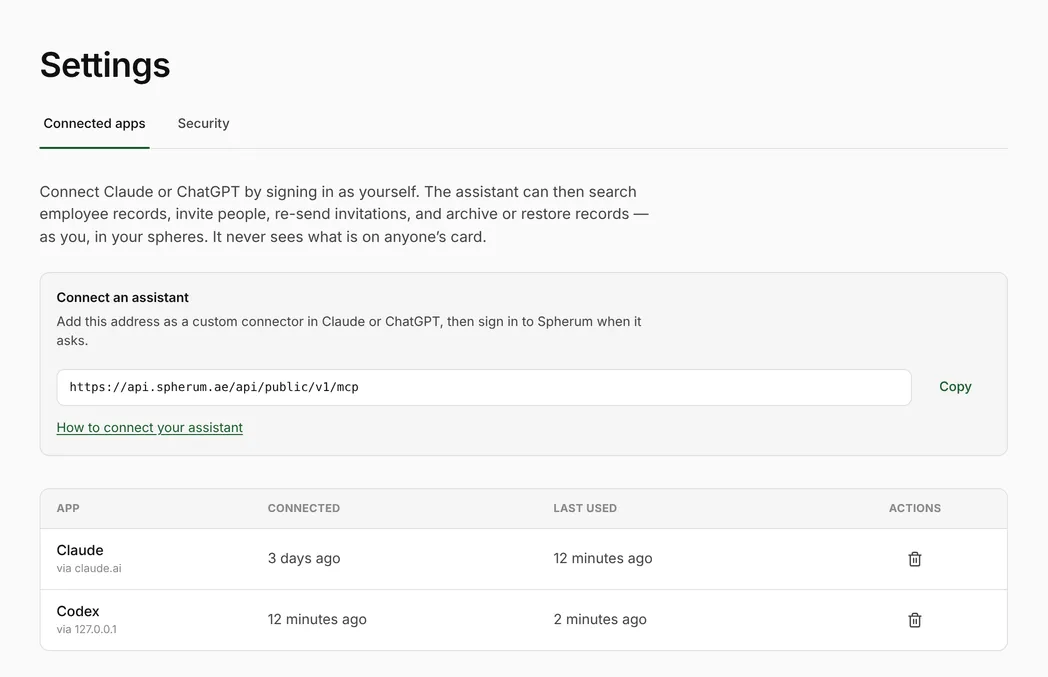
## How connecting works
[Section titled “How connecting works”](#how-connecting-works)
The whole flow takes about a minute and happens once.
1. **You add Spherum in your assistant**, using the server address.
2. **The assistant sends you to Spherum.** A browser tab opens on the Spherum sign-in page.
3. **You sign in** with your Portal account, the way you always do.
4. **Spherum asks you to confirm** which app is connecting, to which company, and as whom. You press **Allow**.
5. **You are back in the assistant**, and Spherum appears among its connectors.
No key is copied anywhere, and nothing is stored on your computer.
## Connecting Claude
[Section titled “Connecting Claude”](#connecting-claude)
The same steps work in Claude in the browser (claude.ai) and in the Claude desktop app.
**If your company has already added Spherum** for everyone, open **Customize → Connectors**, press **Connect** next to Spherum, and go straight to step 5.
1. Open **Customize → Connectors** and choose **Add custom connector**.
2. Give it a name, for example `Spherum`, and paste the server address.
3. Leave the sign-in options as Claude detects them: **Sign in now** under Authentication, and **Register automatically** under OAuth client.

4. Press **Add**, then **Connect** next to Spherum.
5. **If a Claude sign-in page opens first,** sign in with the same Claude account you are using in the app. This is Claude checking it is you, not Spherum yet.
6. The Spherum sign-in page opens. Sign in, check the confirmation page, and press **Allow**.
In a new chat, make sure Spherum is switched on in the connectors menu of the message box, then ask your first question.
## Connecting ChatGPT
[Section titled “Connecting ChatGPT”](#connecting-chatgpt)
Where Spherum works in ChatGPT depends on your ChatGPT plan.
**On any plan with Codex — in the ChatGPT desktop app.** Spherum is added as a server for Codex, and you work with it in Codex rather than in an ordinary chat.
1. Open **Settings → Plugins**, choose **Add**, and pick the custom MCP option.
2. Give it a name, for example `spherum`, choose **Streamable HTTP**, and paste the server address. Leave the bearer token and header fields empty: you sign in instead. Press **Save**.

3. On the **MCPs** tab, press **Authenticate** next to it. The Spherum sign-in page opens in your browser.

4. Sign in. The confirmation page names the app **Codex** and warns that you will go back to an app on this computer. That is expected when you started from the ChatGPT app: press **Allow**.

5. A page saying `Authentication complete` opens. Close it, and the **Authenticate** button is gone.
Ask your questions in **Codex**. An ordinary ChatGPT chat does not see servers added this way, and will say Spherum isn’t available.
**On Business, Enterprise and Edu plans — in ChatGPT chats.** A ChatGPT workspace admin adds Spherum once; you then pick it in a chat by typing **@** and sign in to Spherum when ChatGPT asks. For the admin’s steps, see [Adding Spherum to your company’s Claude or ChatGPT](/guides/administrator/company-connector). On other plans, ChatGPT chats either don’t offer custom servers or let them only read.
## The confirmation page
[Section titled “The confirmation page”](#the-confirmation-page)
This is the one page where you decide, so read it before you press **Allow**.

**The company.** The name of the workspace the app will act in. If you work for more than one, make sure it is the right one.
**You.** At the foot of the page: `Signed in as` your name and email address. If it is somebody else’s — a shared computer, an old sign-in — choose **Sign in as someone else**.
**What it will be able to do.** The six actions above, and nothing else.
**Where you go back.** The address of the assistant you started from. When Spherum cannot confirm the app — it is not Claude or ChatGPT, or it returns to a program on your computer — the page says so in a highlighted box. Only continue if you started connecting from that app yourself.
**Cancel** sends you back to the assistant with nothing connected.
## A conversation, for example
[Section titled “A conversation, for example”](#a-conversation-for-example)
> **You:** Who in our team hasn’t accepted their invitation yet?
>
> **Assistant:** Two people are still at **Invited**: Mary Major (), invited on 3 October, and John Q. Public (), invited on 9 October. Each has a link to their record in the Portal.
>
> **You:** Send both of them the invitation again.
>
> **Assistant:** I’ll re-send the invitation to Mary Major and John Q. Public. Shall I go ahead?
>
> **You:** Yes.
>
> **Assistant:** Done — both invitations have been sent again.
The names and addresses above are made up, as everywhere in this documentation.
## How long a connection lasts
[Section titled “How long a connection lasts”](#how-long-a-connection-lasts)
**Up to 90 days.** After that, the assistant asks you to sign in to Spherum again, second factor included. In between, it stays connected on its own.
**It ends sooner** when your Spherum sessions end: a new password, an administrator resetting your account, or using a recovery code. It also ends when your account or the workspace is archived. Connect again from the assistant if you still need it.
## Disconnecting
[Section titled “Disconnecting”](#disconnecting)
Open **Settings → Connected apps** in the Portal. Every connection is listed with the app, when it was connected, and when it was last used. The bin icon disconnects it at once: the assistant’s next request is refused.
Your administrators see your connections too, and can disconnect them — for a lost laptop, for instance. Tell them if you no longer use one.
Everything the assistant does is recorded as you, exactly as if you had done it in the Portal.
## When something goes wrong
[Section titled “When something goes wrong”](#when-something-goes-wrong)
| What you see | What it means |
| -------------------------------------------------------------- | -------------------------------------------------------------------------------------------------------------------------------- |
| “Spherum staff accounts cannot connect apps” | You signed in with a Spherum staff account. Sign in with your company account. |
| “This workspace is archived, so no app can be connected to it” | The company’s workspace is closed. Nothing can be connected to it. |
| “Couldn’t reach the MCP server” in Claude | Check the address against **Settings → Connected apps**. If it matches, write to . |
| The assistant can’t find somebody you know is there | They are in a sphere you are not assigned to. The assistant sees what you see in the Portal. |
| ChatGPT says Spherum isn’t available in this chat | It was added for Codex. Ask in Codex, or see [Connecting ChatGPT](#connecting-chatgpt) for chats. |
| The assistant asks you to sign in again | The 90 days are up, or your sessions ended. Sign in again from the assistant. |
| An invite is refused because the person already exists | A record with that email is already there, archived ones included. Ask the assistant to find it, and restore or re-send instead. |
# Working in an assigned sphere
> What an operator sees in a sphere they have been assigned, and what stays out of view.
[Download the Operator guide as a PDF](/manuals/spherum-operator-guide.pdf)
This guide is the day-to-day: inviting people, reading what comes back, and making sense of it when something looks wrong. Setting the workspace up — the spheres and their fields, the team, the keys — is in the [Administrator guide](/guides/administrator/getting-started). If you are an administrator you do both; the split is about the work, not about who is allowed to read which manual.
Everything below starts on **Dashboard**, the screen you land on when you sign in.
## Your spheres are the boundary
[Section titled “Your spheres are the boundary”](#your-spheres-are-the-boundary)
An administrator assigns you one sphere or several. That assignment is not a filter laid over a larger view — it is the view. The people you work with, the search box, the status and sphere filters, the export: all of it is bounded by the spheres you hold, and a sphere that isn’t yours leaves no trace of itself on the screen.
Assignments change without ceremony. Gain a sphere and its people are simply there; lose one and they are gone at once.
## What you see
[Section titled “What you see”](#what-you-see)
**The owners in your spheres.** Each row carries their name and corporate address, their sphere, how many contacts they hold, whether they have a token, when their details last changed, and their status — [Understanding grant states](/guides/operator/grant-states) sets out the four. Contacts is a count and stays a count: it tells a filled-in card from an empty one without showing you anything inside it. Beside the Owners heading, how many seats you are using.
**The day-to-day actions.** Add an owner, generate a shared invitation link, send and resend invitations one at a time or several at once, export the list exactly as your filters have it on screen, and archive somebody with the bin. [Invitations](/guides/operator/invitations) covers the sending.
**An activated person’s card.** The paper plane at the end of a row becomes a chevron once somebody is activated, and the chevron opens their card. [Reading a card](/guides/operator/reading-a-card) covers what is behind it and what opening it records.
**Whether somebody has linked a token.** The token column says one thing and only one: this person has linked a token to themselves. Nobody else can do the linking, and a token that has not been linked appears nowhere in the Portal — there is no state in which you know a token exists but is unclaimed.
**What your spheres ask for.** **Spheres** in the navigation shows the emergency-field template of each sphere you are assigned to — the fields people in it are asked to fill in. The rules that govern a template, and the point at which it stops being editable, are in [Spheres](/guides/administrator/spheres).
**Your own account.** **Security**, from the account menu: your second factor and how many recovery codes you have left. It is about your sign-in and nothing else.
## What you don’t
[Section titled “What you don’t”](#what-you-dont)
**Anything in a sphere you are not assigned to.** Not in the list, not in search, not in the filters, not in the export, not in the seat count.
**The inside of a card before the person grants access.** Adding somebody creates a row with an empty card behind it. Until they fill in their own details and grant your company access, there is nothing to open — and there is no state of the product in which you see contacts nobody has agreed to share.
**A card after the grant ends.** A revoked row keeps its place in the list and its seat, and the card behind it closes. That is the owner ending something on purpose, not a fault.
**Field values in the export.** It carries who you hold and the state they are in: names, addresses, spheres, statuses, dates, whether there is a token. Never a single field value from anybody’s card.
**Team.** Adding managers, changing roles, resetting somebody’s password or second factor — administrators only, and the section is not in your navigation.
**Settings, and the Integration API keys inside it.** Administrators only, the same way.
**A delete button.** There isn’t one, anywhere in the Portal. The bin archives.
# Understanding grant states
> The four states a row can be in on Dashboard, what each one means for what you can read, and what moves a person between them.
Every person in your workspace sits in exactly one state, shown at the end of their row on **Dashboard**. The state is about one thing: whether that person has given your company access to their contacts, and whether they still have.
You never set it. It is derived from what has happened — an invitation sent, a consent given, a consent ended — and the filter above the list narrows by it.
## Not activated
[Section titled “Not activated”](#not-activated)
The row exists and the invitation has not gone out.
Adding somebody and inviting them are two actions, not one, so this is where everyone lands the moment you add them — the invitation waits until you send it. It is also where a person stays if a send fails: a failed invitation is never silent, and the row not moving is how you see it. Either way there is nothing behind the row — an empty card waiting for its owner.
Send, or fix the email address first and then send. [Invitations](/guides/operator/invitations) covers both.
## Invited
[Section titled “Invited”](#invited)
The invitation has been delivered, and nothing has come back yet.
The link in it is good for seven days. The person has not filled anything in, or has not finished, and there is still nothing for you to read. Silence here is an answer in itself, and resending is the only lever you have — not a reason to add somebody a second time.
## Activated
[Section titled “Activated”](#activated)
The person filled in their details and granted your company access. Their card is readable, and the Contacts column stops being a zero.
What you see is theirs and stays theirs. They can change a number tonight and your card carries the new one tomorrow; they can end your access at any point without asking you. [Reading a card](/guides/operator/reading-a-card) covers what is behind the row while this lasts.
## Revoked
[Section titled “Revoked”](#revoked)
The person ended your company’s access.
The row stays in the list, keeps its seat and keeps its state on show. The card behind it closes, and opening it says the source was revoked. Nothing is retained from it on your side.
**Getting the details again means asking for them again.** Re-invite the person and the row returns to **Invited**: they are given an editable card and have to grant afresh. Nothing is served in between, and no previous consent is resumed.
Note
Revoking is not the only way here. Archiving somebody ends their grant too — the company ending its own connection — and it is recorded as that, so nobody is told they revoked something they did not.
## What does not move a state
[Section titled “What does not move a state”](#what-does-not-move-a-state)
**Reading a card.** Opening one changes nothing and tells the person nothing.
**Anything you do in the Portal.** You cannot mark somebody activated by hand, and there is no state that means “asked twice” or “declined”.
**A token.** Whether somebody carries a token is independent of their state here, and it stays independent: a person who has ended your access still has a working token, because a token answers to them and to whoever scans it, not to your workspace.
**Seats.** Only archiving frees one. A revoked person is still somebody your workspace holds a row for.
# Invitations
> Sending invitations one at a time or in bulk, shared invitation links, and what to do when somebody doesn't answer.
This guide is about the day-to-day: inviting people, [reading what comes back](/guides/operator/reading-a-card), making sense of it when something looks wrong. Setting the workspace up — spheres and their fields, the team, the keys — is in the [Administrator guide](/guides/administrator/getting-started).
If you are an administrator, you do both. The split is about the work, not about who is allowed to read which manual.
Everything on this page happens on **Dashboard**.
## What an invitation is
[Section titled “What an invitation is”](#what-an-invitation-is)
You are not collecting someone’s emergency contacts. You are asking them to share some, and they answer for themselves.
That framing matters when you write the message that accompanies the link, and it matters when somebody doesn’t reply. Nothing about an invitation obliges them.
## Adding somebody first
[Section titled “Adding somebody first”](#adding-somebody-first)
An invitation needs a row to sit on, and **Add owner** creates it: a name, an email address, and the sphere they belong in. You will only be offered [the spheres you are assigned to](/guides/administrator/roles#spheres).
In an internal sphere the address you type is the **corporate** one. It is how your workspace will know them, it is where the invitation goes, and it is the only address that ever shows up in the list or in search. Their own address comes later and comes from them.
In an external sphere there is no corporate address to use, so the one you type is the person’s own. That is worth pausing on: to add somebody by name here you have to know and type an address that belongs to them, which means you are holding their personal contact details before they have agreed to anything.
Tip
For external spheres, prefer a [shared link](#shared-invitation-links). They supply their own address, you never handle it, and the whole exchange starts on their side. Add people by name only when there is a good reason the link cannot reach them.
You can fix a name — a typo, a married name, the wrong initial — right up until the invitation goes out. After that it is theirs to change, not yours.
Adding somebody creates nothing you can read. It creates a row with an empty card behind it and an invitation waiting to be sent. Creating and sending are two steps on purpose: you can put a whole intake in place, check it, and then send.
## Sending one
[Section titled “Sending one”](#sending-one)
The paper plane at the end of somebody’s row sends their invitation. They get an email with a link that is good for seven days.
If the email doesn’t go out, their row stays at **Not activated** and you can try again. A failed send is never silent.
You can only invite people in the spheres you are assigned to. If a sphere isn’t yours, you won’t see it.
## Resending
[Section titled “Resending”](#resending)
The same paper plane resends. Use it when the seven days have run out, when somebody says the email never arrived, or when it has been long enough that the first one is buried.
Resending is safe: it doesn’t create a second record, and it doesn’t undo anything the person has already filled in.
## Inviting in bulk
[Section titled “Inviting in bulk”](#inviting-in-bulk)
Tick the rows you want. A bar appears above the list with the count and the invite action in it.
When it finishes you are told how many went out and how many didn’t. Check that number rather than assuming — a bulk send that half-worked looks exactly like one that worked.
## Shared invitation links
[Section titled “Shared invitation links”](#shared-invitation-links)
Sometimes there is no list to work from: a site with contractors coming and going, a clinic’s waiting room, a shift that changes weekly.
**Generate invite link** makes a link that adds people to a sphere you choose.
* A link belongs to one sphere. Everyone who opens it lands there.
* It can carry an expiry, or none.
* You can only generate links into spheres you are assigned to.
The same panel lists every link that is live, with its sphere, its expiry and how many people have joined through it. That last number is the one to watch: it tells you whether a poster is working before anybody asks.
Each row copies the link, shows its QR code, or revokes it.
A shared link is impersonal, so it asks for more than a named invitation does. The person gives their own email address, which becomes their sign-in, and — if [the sphere is set up to ask](/guides/administrator/spheres#corporate-email) — their corporate address as well, which is what ties them to your company. The two cannot be on the same domain: if they were, leaving the company would take their sign-in with it.
Opening the same link twice does not create two people.
### The QR code is the point
[Section titled “The QR code is the point”](#the-qr-code-is-the-point)
A link you can only paste into an email is half a feature. The QR code is downloadable, so the invitation can live somewhere physical:
* Taped to the reception desk of a clinic, for patients to fill in while they wait
* Somewhere in your own offices, for employees to scan as they pass
* At a site entrance, for contractors who are on the job for a week
* Printed into an onboarding pack, so it is done on day one rather than chased in month three
This is usually what makes the difference between a sphere that fills up and one that doesn’t. People will scan a code in front of them; they will not go looking through their inbox for something their employer sent last Thursday.
**Download QR** gives you the image on its own, so you can put it into whatever you are printing — a poster, a sign at the desk, a page in the onboarding pack.
Give it some words. Somewhere on the sheet you want the name of the sphere, one line saying what scanning it does, and who to ask if something goes wrong. A bare code on a wall gets scanned by nobody: people need to know what they are agreeing to before they point a camera at it, not after.
### Revoking
[Section titled “Revoking”](#revoking)
Revoking takes effect straight away, and it reaches every copy at once — the one in the email, the one on the office wall, the one somebody photographed. You do not have to collect the posters, only remember the link exists.
Caution
Treat a live link the way you would treat an open door. It is not a secret, it is just unattended — revoke it when the intake it was made for is over.
## When somebody arrives both ways
[Section titled “When somebody arrives both ways”](#when-somebody-arrives-both-ways)
If you invited someone by name and they turn up through a shared link with that same corporate address, they become one person, not two. The invitation you sent is claimed rather than duplicated.
## When nobody answers
[Section titled “When nobody answers”](#when-nobody-answers)
An unanswered invitation is the normal state of a new one, not a problem. People are busy and it is not their job.
Before chasing, check the row. **Not activated** and **Invited** mean different things, and the difference tells you whether to resend or to go and talk to somebody — see [Understanding grant states](/guides/operator/grant-states).
What doesn’t help is inviting the same person repeatedly over a few days. The link they already have is good for a week, and a second email arriving on Tuesday does not make the first one more persuasive.
# Reading a card
> What an activated owner's card shows you, what it leaves out, and what opening one records.
What is behind the chevron on an activated row, and what opening it does.
## Opening a card
[Section titled “Opening a card”](#opening-a-card)
On **Dashboard**, the paper plane at the end of a row becomes a chevron once somebody is **Activated**. The chevron opens their card. Rows in any other state have no chevron, because there is nothing behind them to open — [Understanding grant states](/guides/operator/grant-states) sets out which state is which.
A card also has its own address, which is what an external system points at when it hands somebody a link to a person in the Portal.
## What it shows
[Section titled “What it shows”](#what-it-shows)
**Who, and since when.** Across the top: the sphere the person belongs to, the email address your workspace knows them by, when they granted your company access, and when they last changed anything.
**Their contacts, as they filled them in.** The fields of your sphere’s template, under the groups it defines — the owner’s own details first, then the preferred contact, then the backup. A phone is a phone and an address offers to open in Maps.
**Fields they added themselves.** Anything marked **own field** is something the person chose to put on the card beyond what your sphere asked for. Your template is the question; it does not limit the answer.
**What is true right now.** A card is loaded at the moment you open it and never served from a cache. What you see is what the person holds today, not what they entered on the day they were invited.
## What it doesn’t
[Section titled “What it doesn’t”](#what-it-doesnt)
**Anything from before the grant.** No history, no previous values, no record of what was corrected. A card is a current state, not a file on somebody.
**Anything meant for another company.** A person may hold several cards, each answering a different company’s sphere. Yours shows yours.
**Anything you can edit.** The card is read-only for you, down to an obvious typo. The person maintains it, which is the whole arrangement: if they could not change it without you, it would not be theirs.
**Contacts in bulk.** Print works from inside one open card, one card at a time, and that is deliberate. The roster export carries who you hold and the state they are in — never a field value from anybody’s card.
**A card whose grant has ended.** A revoked row will not open, and what comes back says the source was revoked. That is the person having ended something on purpose, not an error to report. The same is true before they have granted: there is nothing behind the row yet.
## Printing a card
[Section titled “Printing a card”](#printing-a-card)
Caution
Paper is the one copy the owner cannot revoke. The card closes when the grant ends; a sheet already filed does not. Print when something needs the details off-screen, not to keep one to hand.
**Print this card** produces a single sheet carrying the contacts, your company’s name, who printed it and when. It is offered on an activated card only.
It also creates an entry in the compliance trail saying that a card was printed, in which workspace and when. The entry never carries what was on the sheet.
## What opening one records
[Section titled “What opening one records”](#what-opening-one-records)
Opening a card is a read, and reads are not written to the compliance trail. Nothing is sent to the person either — they are not told that you looked, and the product does not pretend otherwise.
The roster export is recorded as well, with the filters it ran under described but never quoted.
# When something looks wrong
> The cases that come up most often in day-to-day work, what each one actually is, and where the line sits between fixing it yourself and asking somebody else.
Most of what looks like a fault is the product being careful. This page covers the cases that come up often enough to be worth recognising on sight, and then draws the line at what is not yours to fix.
## Common cases
[Section titled “Common cases”](#common-cases)
**“I never got the invitation.”** Resend it — the same paper plane does both. The link is good for seven days, so a week-old invitation is expired rather than broken, and resending costs nothing and creates nothing: no second row, and nothing the person has already filled in is undone.
**The row is still Not activated after you sent.** The send did not go through. Try again, and check the address before you do.
**The address on the row is wrong.** It cannot be edited. An invitation was sent somewhere, and quietly repointing it would mean a row whose history says one thing and whose address says another. Add the person again with the right address and archive the row that was wrong.
**The name on the row is wrong.** You can fix a name right up until the invitation goes out. After that it is theirs, and they change it themselves.
**“I filled everything in” but the row is still Invited.** Filling in and granting are two steps, and only the second one gives your company anything. Until they confirm, there is nothing behind the row — [Understanding grant states](/guides/operator/grant-states) walks through it.
**The card won’t open.** Two different things read almost the same on screen. Either the person has never granted access, or they granted it and have since ended it, in which case what comes back says the source was revoked.
**Contacts says 0 on an activated row.** They granted access to a card they have not filled in.
**You cannot find somebody you know is there.** Three usual reasons: they sit in a sphere you are not assigned to, they have been archived and the **Show archived** toggle is off, or you are searching for their personal address. Internal spheres list and search the corporate address only — the person’s own address is theirs and never appears.
**Adding somebody is rejected as a duplicate.** That address is already on a row, whatever the capitalisation. Find the existing row rather than making a second one.
**A shared link is refused.** It has been revoked, or it has expired — the panel lists every link that is still live. If they are joining an internal sphere, the link also asks for a corporate address, and it cannot be on the same domain as the personal one they sign in with.
**Somebody can’t sign in because they lost the email or phone they joined with.** You cannot change it for them: how they sign in belongs to their own account, not to your workspace. Resending the invitation won’t help either — once someone has joined, the code goes to them, whatever address is typed on the page. If they added a second way to sign in, or are still signed in somewhere, they change it themselves — [Signing in](/guides/for-your-people/signing-in#if-you-lose-access) walks them through it. Otherwise, point them to .
## What to escalate
[Section titled “What to escalate”](#what-to-escalate)
**To an administrator in your company.** Anything about the shape of the workspace rather than the day’s work: a sphere you need and are not assigned to, somebody on your team who needs adding or removing, a password or second factor of yours that needs resetting, and anything to do with [Integration API keys](/guides/administrator/settings#api-keys).
**To Spherum.** Tokens — ordering a batch, or one that has been lost. Invitations that are failing for everybody rather than for one person. Anything else you are unsure about is welcome too; we would rather hear it early. [Support](https://spherum.ae/support) has the address to write to, how quickly we come back and when we are around.
**Asking for a shared Slack channel.** If your team would rather ask in Slack than write an email, we open a Slack Connect channel between your workspace and ours. Write to the support address with your Slack workspace name and the email address we should send the invitation to — one message is enough. We send a Slack Connect invitation to that address; accepting it is done inside your own Slack, and your Slack administrator may have to allow the external connection first. It is the same people and the same response times as the mailbox, not a faster queue.
**Worth a conversation rather than a ticket.** Somebody who has not answered yet, somebody who ended your access, contacts you cannot see — these are the product working as it should, and a word with the person usually gets further than anything we could do from our side. If you are not sure which side of the line something falls on, ask us anyway.
# Ending and replacing tokens
> Releasing a token, switching off one that has gone missing, and issuing a replacement.
Covers how a live token is ended: released by the person carrying it, or switched off when it is gone. The two are not interchangeable, and which one is right depends on who is holding it.
## Unlinking
[Section titled “Unlinking”](#unlinking)
**Releasing a token is the owner’s act and nobody else’s.** They open **My tokens** in their own Spherum card, pick the token and release it — the same place and the same single confirmation that [linked it](/guides/tokens/handing-out#binding-a-token-to-a-person). There is no control in the Portal that releases somebody’s token, at any level, and archiving a person does not touch what they carry.
**The token goes blank, not dead.** From the next scan it shows what it showed before anybody linked it: not active, with an invitation for whoever ought to be linking it. Nothing of the previous holder stays behind it, and their card and any other token they carry are untouched.
**Which is what makes a handover clean.** A released token is an unlinked token, so the next person links it exactly as the first one did, and the moment they do it points at their contacts and nobody else’s.
Caution
A token that has gone missing is not unlinked. Blank is precisely the state in which whoever is holding it can link it to themselves, so releasing a lost token hands it to the finder. Switch it off instead.
## Deactivating
[Section titled “Deactivating”](#deactivating)
**Switching off is for a token nobody has in hand.** Lost, stolen, or gone with somebody who has stopped answering. Anything that is not a handover to a named person is ended this way, not by releasing it.
**The address behind the QR stops returning anything.** A scan says the token is no longer active, and that is all it says. It cannot be linked either, so whoever picked it up gets neither the contacts nor a way to make it theirs.
**The owner switches it off, from the same My tokens.** There is no such control in the Portal for anybody — if the owner cannot do it themselves, tell us and we will switch the token off at your request.
**Only support can turn it back on.** Not the owner, not the company. It is not a pause: if the token turns up later, getting it working again is a conversation with us.
Note
The key the QR carries is printed on the object and is never reissued. A switched off token therefore cannot be given a new key and handed to somebody else — it stays off rather than going blank.
## Issuing a replacement
[Section titled “Issuing a replacement”](#issuing-a-replacement)
**A replacement is an ordinary handout from your stock.** Give the person a new token and they link it, exactly as covered in [Handing tokens out](/guides/tokens/handing-out).
**There is nothing to migrate.** Contacts live with the person, not inside the token, so a new one shows the same contacts from the moment it is linked. No link between the old token and the new one is kept, and none is needed.
**Switch the missing one off first, then hand out the new one.** The other order works too — somebody can carry several tokens at once and they all show the same thing — but switching off a lost token is not worth postponing until a replacement is to hand.
**Nothing to reconcile on the company side.** The Portal still shows one thing: this person has a linked token. Which one it is, and how many they have been through, is a question nobody needs to ask.
# Handing tokens out
> Handing a token over, and how the person it belongs to links it to themselves.
[Download the Tokens guide as a PDF](/manuals/spherum-tokens-guide.pdf)
Covers the two steps that put a working token in someone’s hand: handing it over, and the person linking it to themselves. They happen in that order and cannot happen in the other one.
## Handing over
[Section titled “Handing over”](#handing-over)
**Hand them out like stationery, and keep the spares locked up like keys.** Possession is the whole authority here: whoever physically holds an unlinked token can link it to themselves. There is nothing to configure before you give one out and nothing to write down after.
**You do not need to record who got which one.** The pairing is made when the person links it, and the Portal shows it on their row: a token column that says one thing only — this person has linked one. Until somebody does, a token appears nowhere in the Portal at all, so there is no state in which you know a token exists but is unclaimed.
**Handing one out early is fine.** A token can be linked before its owner has filled anything in, so giving them out at induction, alongside the invitation, works — the token simply shows nothing to a scan until the contacts behind it exist.
**Passing one on means the first person releases it.** A company cannot reclaim a linked token: unlinking is theirs alone, and archiving somebody does not touch what they carry. Once released, the token is blank again and the next person links it the same way — with no trace of the previous holder behind it.
Caution
That also means a token stays live when someone leaves, until they unlink it or you ask us to switch that token off. Taking the token back is not what ends it.
## Binding a token to a person
[Section titled “Binding a token to a person”](#binding-a-token-to-a-person)
A token you have handed out is still blank. It points at nobody, and scanning it shows nothing until the person it went to links it to themselves.
**Only they can do the linking.** There is no bind control in the Portal, for anybody, at any level. That is not an omission: the link is what turns a printed QR into someone’s emergency contacts, so it has to be their act and not a decision taken about them.
**Two ways, both from their phone.** They open **My tokens** in their own Spherum card, choose **Add a token**, and either scan the QR or type the `SPH-T-…` ID printed on it. Scanning is the normal path; the printed ID is there for a code that won’t read, a cracked face, bad light.
**One confirmation, and it is live.** Linking is the consent — there is no separate activation step and nothing for you to approve afterwards. From that moment a scan shows what that person chose to share.
**One person, several tokens.** Somebody carrying two is an ordinary case, and both point at the same contacts. A token from another company is no obstacle either: what matters is that they hold it.
Note
A token that somebody else has already claimed will not link, and the app says only that the token was not found — the same answer a typo gets. It never reveals that a token belongs to someone, or to whom.
# What happens when a token is scanned
> What a scan shows the person holding the token, and what it deliberately does not.
Describes the result of a scan from the side of whoever scans it — what is shown, and what is not.
## What the responder sees
[Section titled “What the responder sees”](#what-the-responder-sees)
**A page, straight away.** The phone camera reads the QR and opens it. Nothing to install and no account to hold: emergency contacts behind a login would be no use to the person standing there, who has no reason to have one.
**Who to call, in the order to call them.** The name of the person the token belongs to, then their contacts grouped as **Call first**, **If no answer** and **About them**. It is meant to be read top-down until a number answers. Numbers are tap-to-call, email addresses open a message, addresses open in Maps.
**When it was last updated.** The stamp sits under the name, and it is the whole difference from a card printed on paper: what a responder reads is what the person last set, not what was true when the token was made.
**A short-lived address.** Once the page opens, the address in the browser changes to a temporary one. It works for 30 minutes — reloading it shows the card again, with current details — and then it says the link has expired and the token has to be scanned again. Whoever the address is forwarded to sees the card too, until it expires.
**Only what has been filled in.** Empty fields are not rendered at all — an unanswered row costs reading time — and what is there is what the person chose to put behind their token.
**Sometimes, the token’s ID first.** Its owner can ask for the last 5 characters of the ID printed on the token before the card is shown. The page says so and shows where to look: `SPH-T-XXXXX-?????`. A mistake can be corrected and tried again, and the card is never locked.
**That check is the owner’s choice.** It is off unless they turn it on, under **My tokens → Ask for the token’s ID before showing your contacts**. It is worth turning on only if the ID on the token is easy to read: if it is worn or too small, a responder cannot reach the contacts.
**One of three other outcomes, when there is no card to show.** A token nobody has linked yet says it is not active, and offers a link for the person who ought to be linking it. A token linked by someone who has not filled anything in says there is no emergency information yet. A token that has been switched off says it is no longer active.
Note
The view needs a connection. It is always loaded fresh and never served from a cached copy, so a scan out of signal shows nothing.
## What they don’t
[Section titled “What they don’t”](#what-they-dont)
**Anything the person did not put there.** This is not a medical record and not a file on anybody: it holds the contacts and details they entered, at their current values, with no history and no earlier versions behind them.
**A way into anything else.** The page has no navigation, no search, nobody else’s details, and no route into the Portal or into that person’s account. It is one page about one person and it leads nowhere.
**A page that can be found.** It is not indexed, never linked from anywhere, and carries instructions to search engines to leave it alone. The only way in is physically holding the token.
**The printed ID is not the way in.** The ID on the face of a token is for its owner to link it by, and it will not open this page — the QR carries a different key. The page never shows that ID either. If the owner asks for it, its last 5 characters only confirm a scan; on their own they open nothing.
**An address anyone could arrive at by trying.** What the QR carries is long and random, and it is not built from the printed ID or from anything else about the person — there is no pattern to work out and no neighbouring token to step to. A wrong address returns the same page an unlinked token returns, word for word, so an attempt is not even told it was wrong.
**Who scanned it.** Nobody is asked who they are, and nothing about them is kept: not a name, not a device, not where they were. The scan itself is recorded on our side as an event — that this token was scanned, and what it resolved to — which is what lets a token’s use be accounted for without anyone being identified by it.
Note
A scan does not depend on any company’s access. Revoking a company’s card leaves the token working; it stops only when its owner unlinks it or the token is switched off — see [Ending and replacing tokens](/guides/tokens/ending-tokens).